
Shared school sign-in and product entry
Reach the school’s licensed tools through configured school sign-in routes and a shared Account home.
For School staff
Shared service · Account
Shared sign-in, school membership, licences and appropriate access for the tools your school chooses.
Account connects the six apps through school access, licences and shared settings.
Explore Account
School examples and feature detail.
Area 1 of 4
Account
Use the shared school sign-in and Account home to reach licensed products, with each tool's own rights and responsibilities kept clear.
Account provides the shared school service for your chosen Critical Developments tools. Each product keeps its own licence and record permissions.
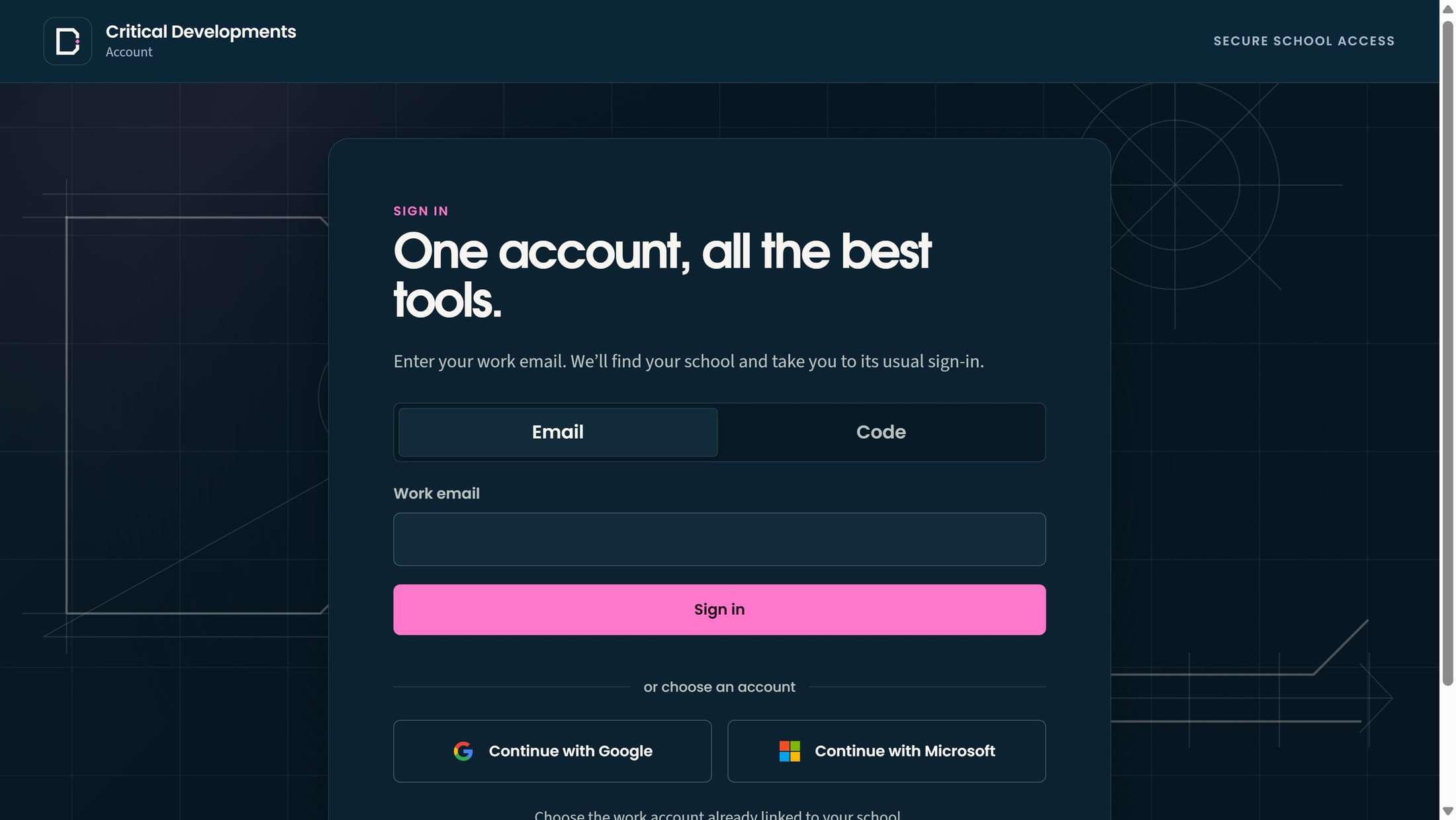
Reach the school's available tools through its configured sign-in route. Microsoft and Google connections are activated during onboarding; local accounts are invitation-only. Opening Account does not assign access to every product or pupil record.
Request a product licence and attach the relevant order or contract evidence for separate review. A request, estimate or purchase order is not activation. Check the licence's confirmed status before relying on product access.
The full suite includes all six product apps, including Ready and WorkPane, plus shared Account. Confirm your school's chosen products, setup and availability.
Choose a numbered marker to look closer.
Start with your work email
Use a configured school account
Account
Keep school membership and product duties distinct, so staff can reach the work they are responsible for without blanket pupil access.
Account provides the shared school service for your chosen Critical Developments tools. Each product keeps its own licence and record permissions.
Invite staff, review their Account access level and manage school membership status. Ask the colleague to confirm that the invitation arrived, then check that their membership is in the intended state.
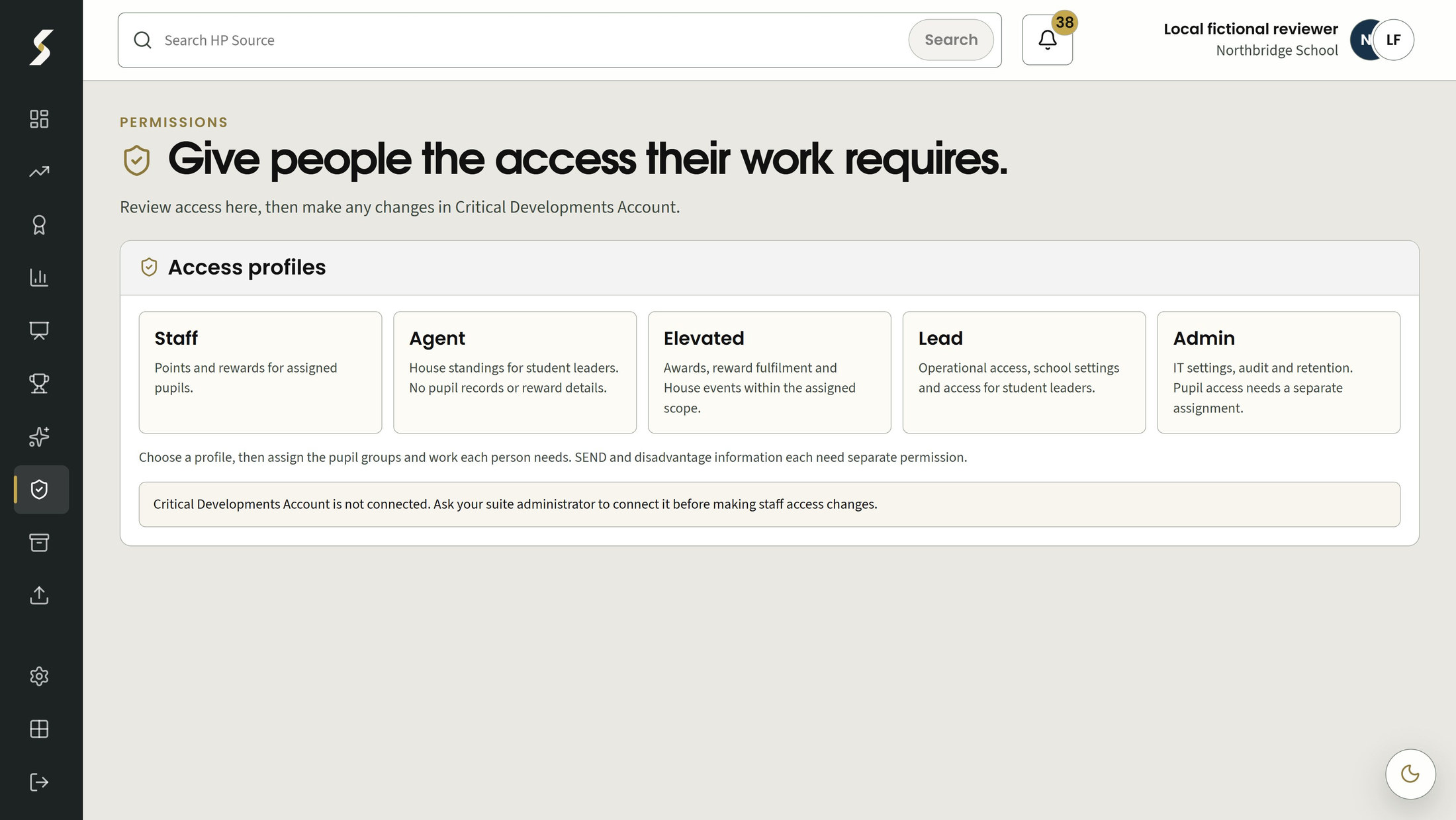
Use designated product permission workspaces to assign responsibilities. An Account level does not confer every app capability or pupil record. Product Leads, professional designations and source scope remain distinct; administration does not create blanket pupil access.
Review bounded recent account and access activity without opening pupil records. It helps explain school-account changes, while product records keep their own histories and permissions.
Account activity is not a complete pupil-work audit or a compliance certificate. Use each product's record and access controls for its own work.
Choose a numbered marker to look closer.
Different duties, different profiles
Administration is separate from pupil access
Account
Use the school's configured verification policy, request help when a method is lost and review signed-in sessions deliberately.
Account provides the shared school service for your chosen Critical Developments tools. Each product keeps its own licence and record permissions.
Set the school verification policy and require renewed verification for sensitive Account changes. The available methods depend on the configured provider and current school policy.
Record a request when a member loses an enrolled verification method. The request does not bypass the checks or guarantee a reset. Microsoft or Google password recovery remains with the school or provider.
Inspect current Account sessions and deliberately end another session through the security controls. The result shown applies to the selected Account session. Check any other product or provider access separately.
School/provider account recovery and other signed-in services retain their own controls. Follow the displayed outcome before assuming that access has changed.
Find the detail
Browse by school job, feature or the people using it.
Features 10
No matching features. Try a broader term or clear the filters.
Account provides the shared school service for your chosen Critical Developments tools. Each product keeps its own licence and record permissions.
Reach the school’s licensed tools through configured school sign-in routes and a shared Account home.
For School staff
Request product licences and attach order/contract evidence for separate review and activation.
For School administrators
Account provides the shared school service for your chosen Critical Developments tools. Each product keeps its own licence and record permissions.
Invite staff, review Account access level and manage school membership status.
For School administrators
Use designated product permission workspaces and assignments to match access to responsibilities.
For Designated administrators, Product leads
Review bounded recent account/access events without exposing pupil records.
For School administrators
Account provides the shared school service for your chosen Critical Developments tools. Each product keeps its own licence and record permissions.
Set the school verification policy and require renewed verification for sensitive account changes.
For School administrators, Security owners
Record a recovery request when a member loses an enrolled verification method.
For School administrators
Inspect current signed-in sessions and deliberately end another session through the existing security controls.
For School administrators
Make it work for your school
Explore another app, check the complete annual price, or arrange a conversation about your school’s needs and Wonde MIS integration.