
HP Source · In action
From earned points to the House Cup.
HP Source turns House points into a working cycle: see progress, settle rewards, run events, approve recognition and present the result with a little theatre.
Real product screenshots · demonstration school records. Choose a workflow, move through its screens and explore the gold spots.
01 · Find and issue rewards
Make sure an earned reward reaches the next stage.
Find the pupil’s reward threshold, assign the reward and record its issue in the retained queue.
Check pupil progress. The pupil view shows points, tier and distance to the next reward.
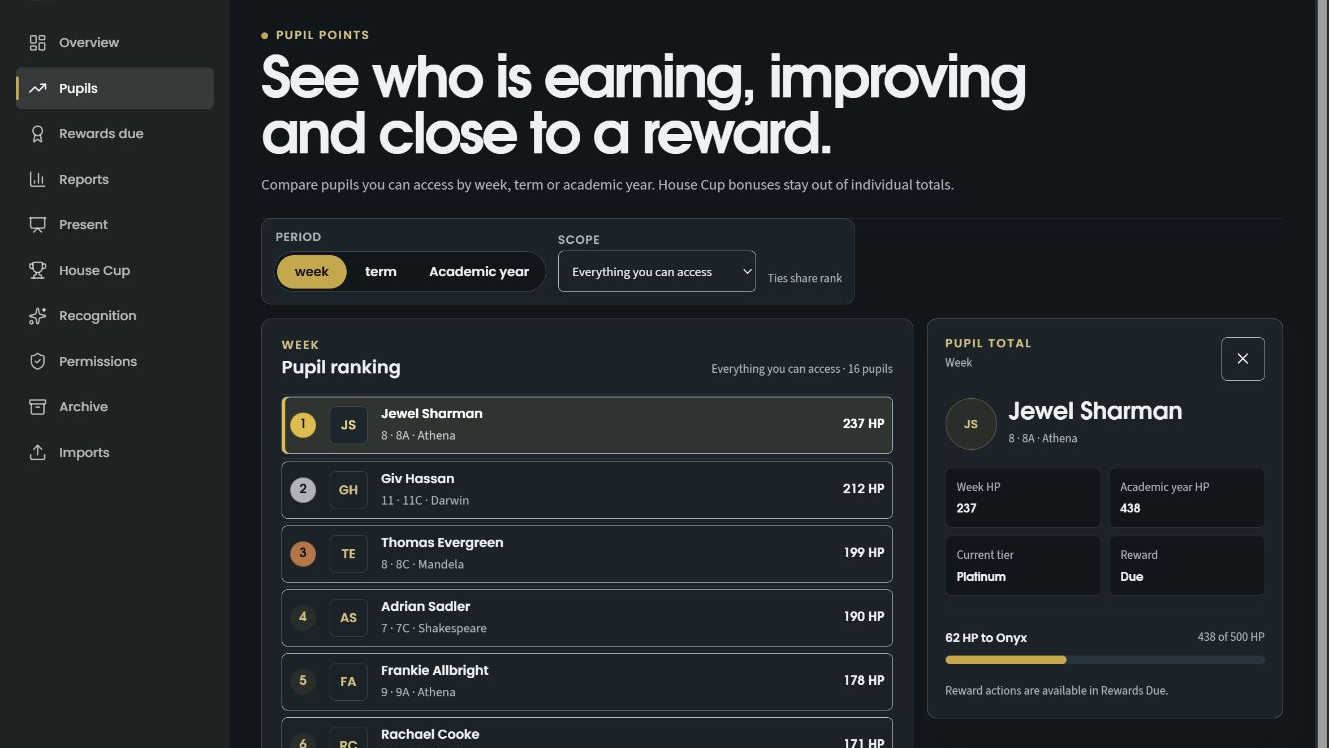
Open an individual from the current ranking.
Read the pupil’s totals, tier and next threshold together.
Choose the time period and group represented by the ranking.
Give the reward an owner. Stage ownership in Rewards Due before saving.
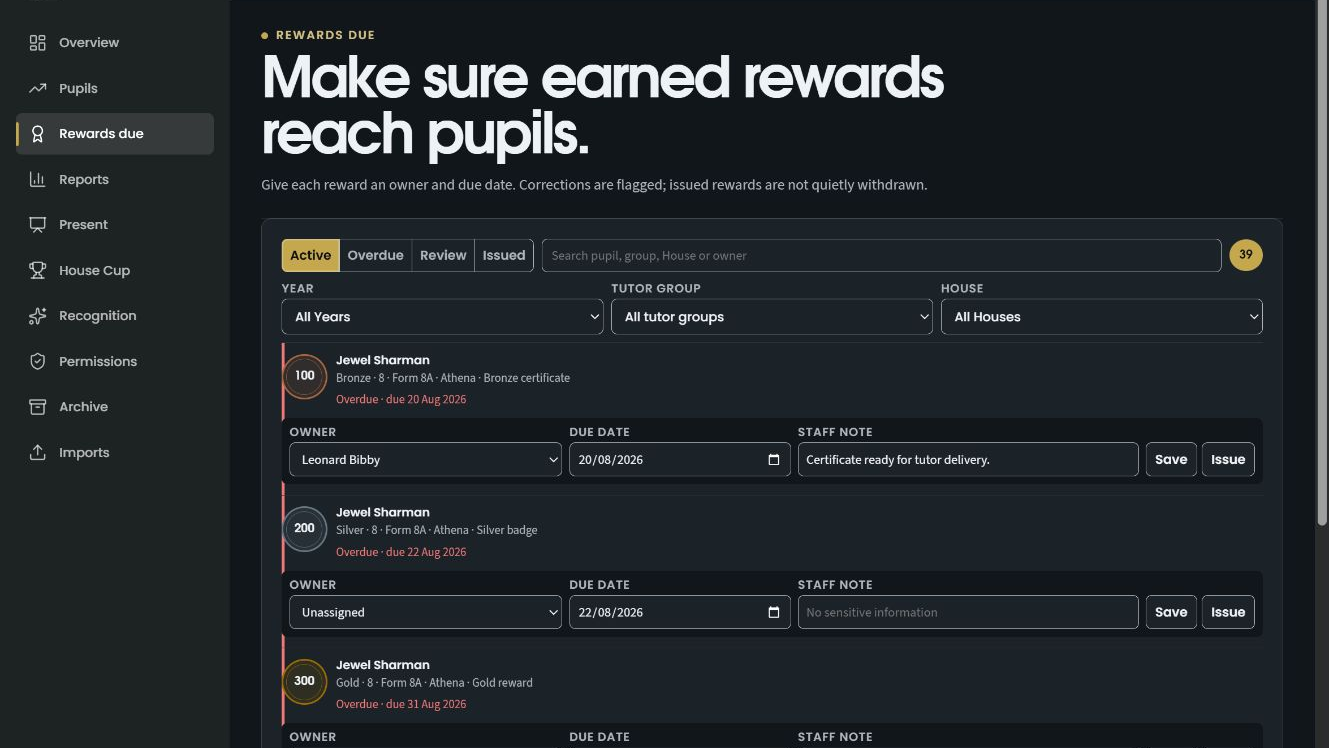
See which earned rewards still need to reach pupils.
Assign responsibility before changing the reward record.
Switch between rewards due and the other queue states.
Record the issued reward. Ava’s Bronze reward is now marked as issued, with its date and House retained.
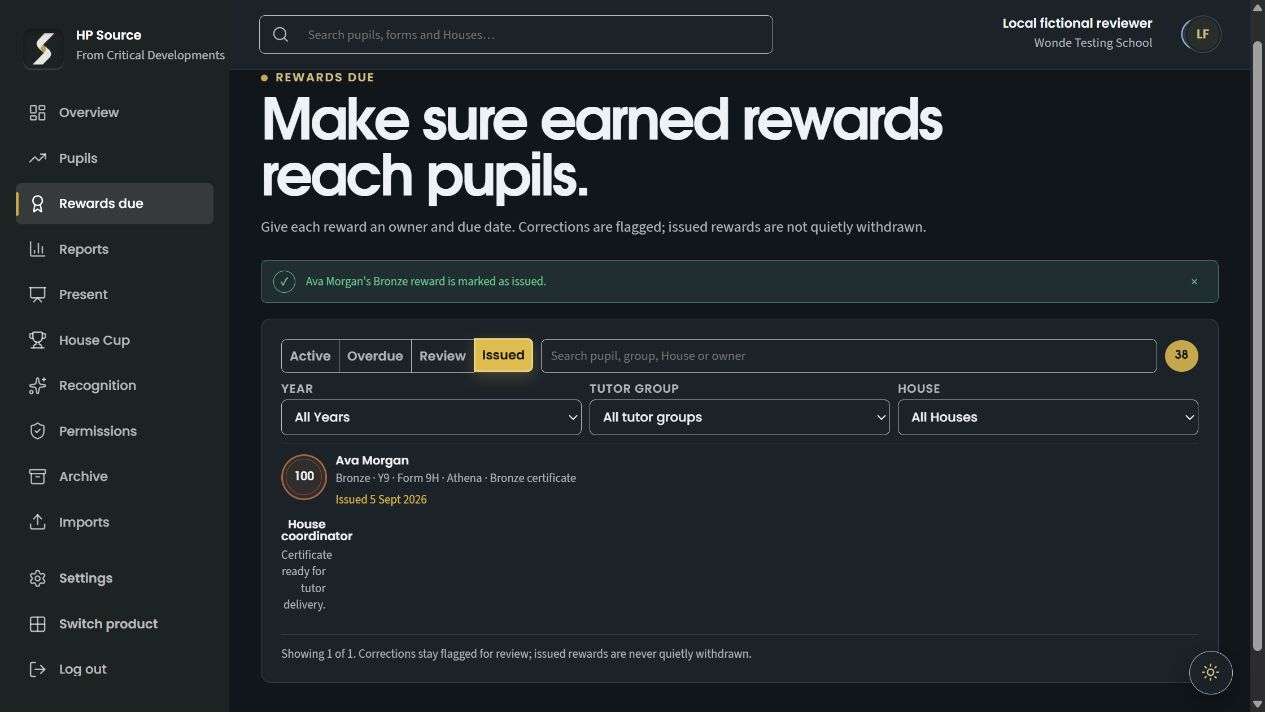
The app confirms the specific reward marked as issued.
Issued rewards have their own queue view.
Pupil, tier, House and issue date remain available.
Features in this workflow
- Pupil rankings
- Reward thresholds
- Rewards Due
- Named ownership
- Issue state
- Retained reward history
02 · Run a House competition
Show how event awards enter the House race.
Prepare the event awards, then inspect standings that keep pupil points and Cup bonuses separate.
Prepare the event awards. Review calculated House awards and the available correction history.
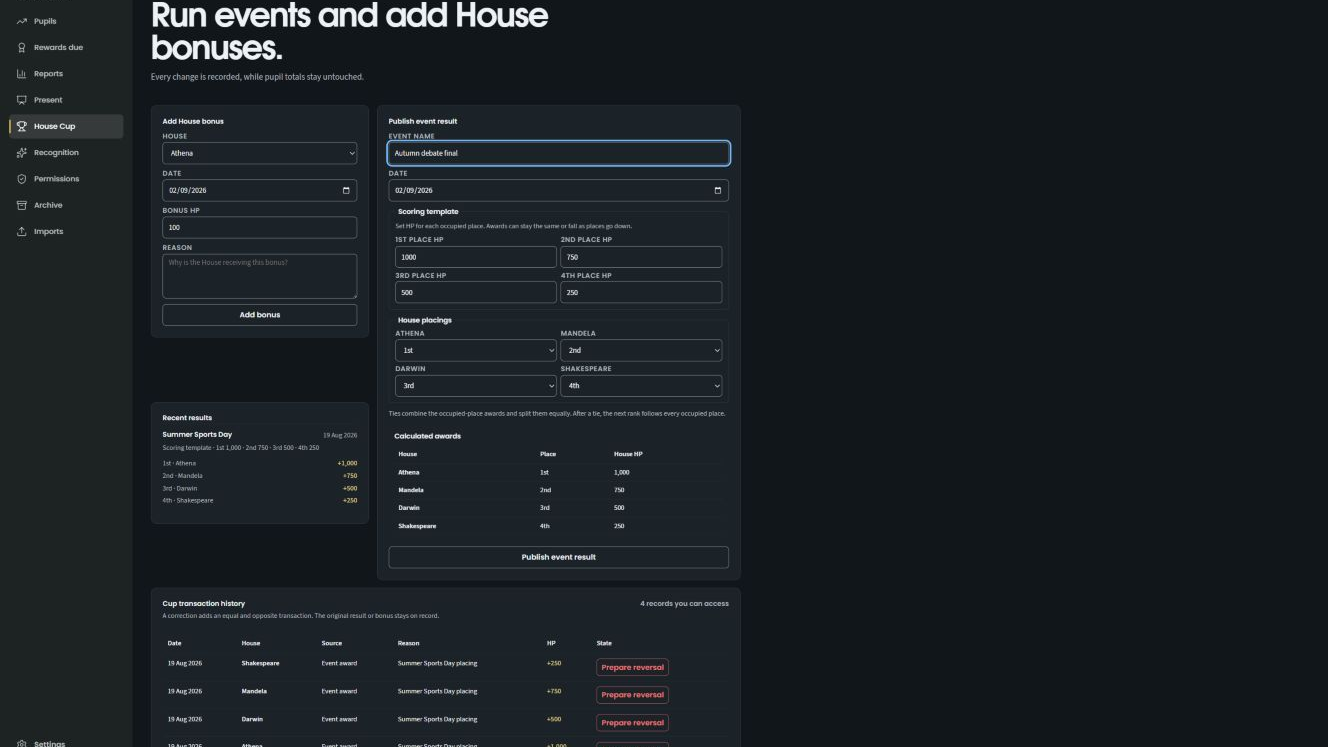
Prepare the event and its House awards.
Preview the competition result without rewriting individual pupil points.
Inspect the retained history of changes to event awards.
Inspect the House standings. The House race exposes each House’s pupil points and Cup bonuses.
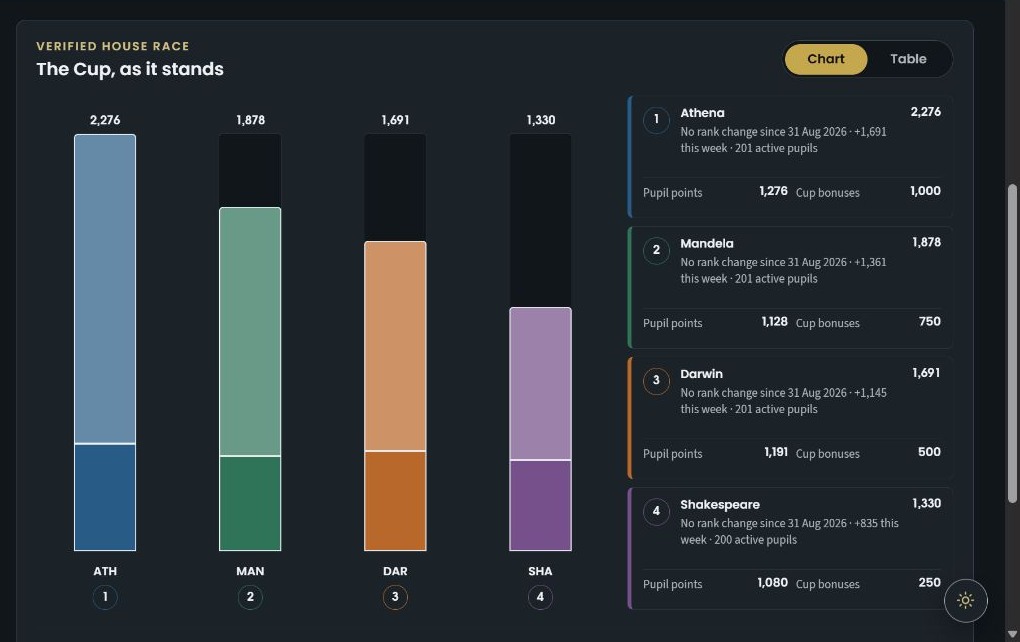
Compare the House totals in the current competition.
Read the pupil-point total separately from Cup bonuses.
Switch the presentation of the same standings.
Features in this workflow
- Event scoring
- Calculated awards
- House standings
- Separate Cup bonuses
- Correction and reversal history
03 · Publish recognition
Choose the audience and the public display.
Set recognition scope and name visibility, then use a published Showcase for the House standings.
Choose recognition permissions. Keep audience scope, name withholding and revocable display explicit.
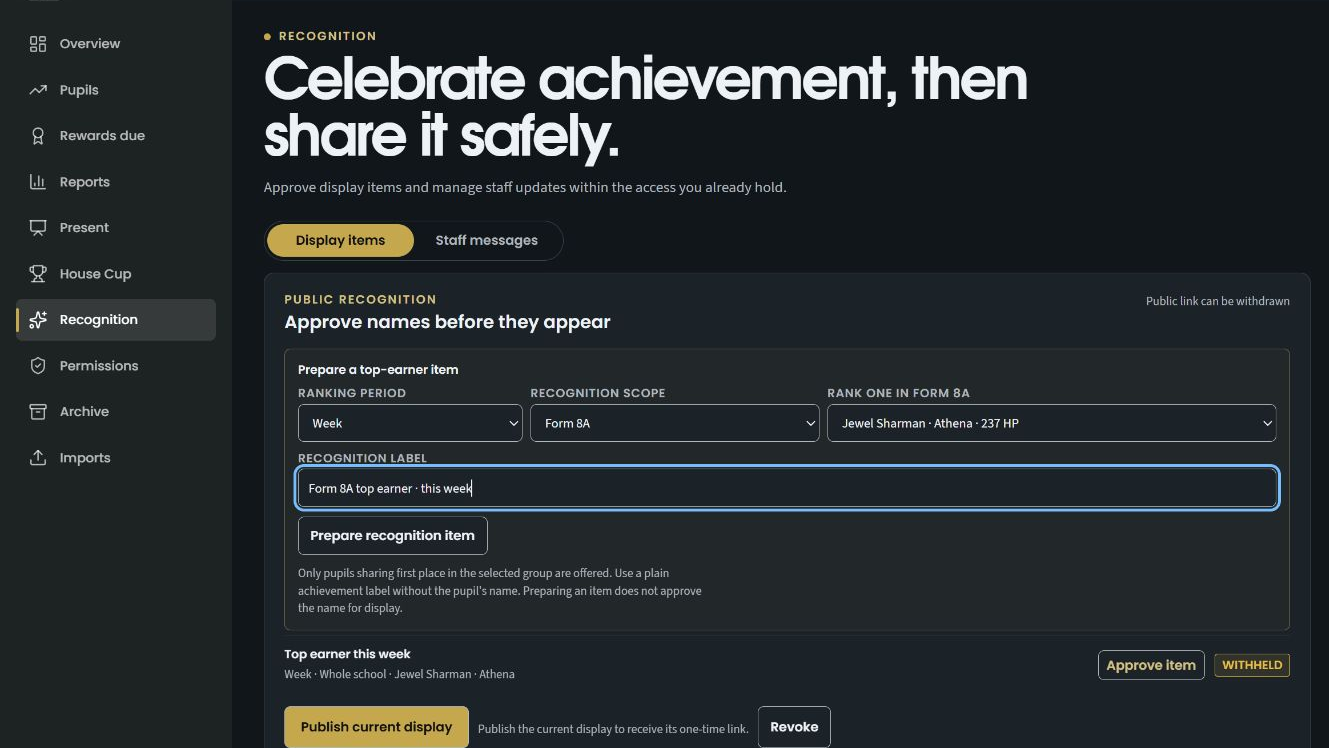
Choose who the recognition is intended for.
Withhold a name where recognition should not identify the pupil.
Choose the intended group before preparing the display.
Open the school Showcase. The demonstration snapshot gives the standings a readable display with playback controls.
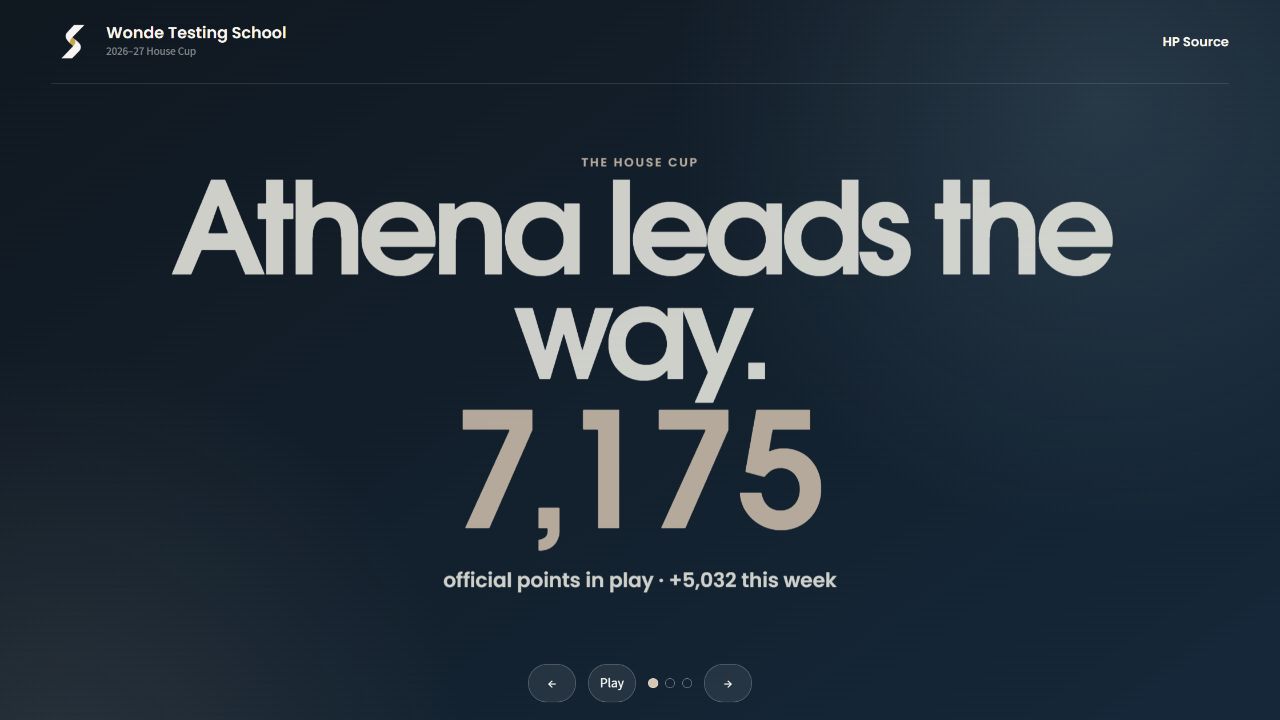
A large display communicates the current House leader.
The display identifies the points in play and weekly movement.
Pause the loop or move between slides.
Features in this workflow
- Recognition scope
- Name visibility
- Individual approval
- Revocable display
- Published snapshot
- Showcase playback
04 · Present the House Cup finale
Reveal the event. Watch the race change. Name the champion.
Begin from the starting totals, reveal the Sports Day podium and finish with the scored House Cup result.
Choose the presentation. Select the Grand Finale format and its reveal treatment.

Choose Report, Showcase or Grand Finale.
Select the content of the presentation before publishing.
Select the format designed for the final competition reveal.
Establish the starting race. The pre-event standings show the points already awarded before the reveal.
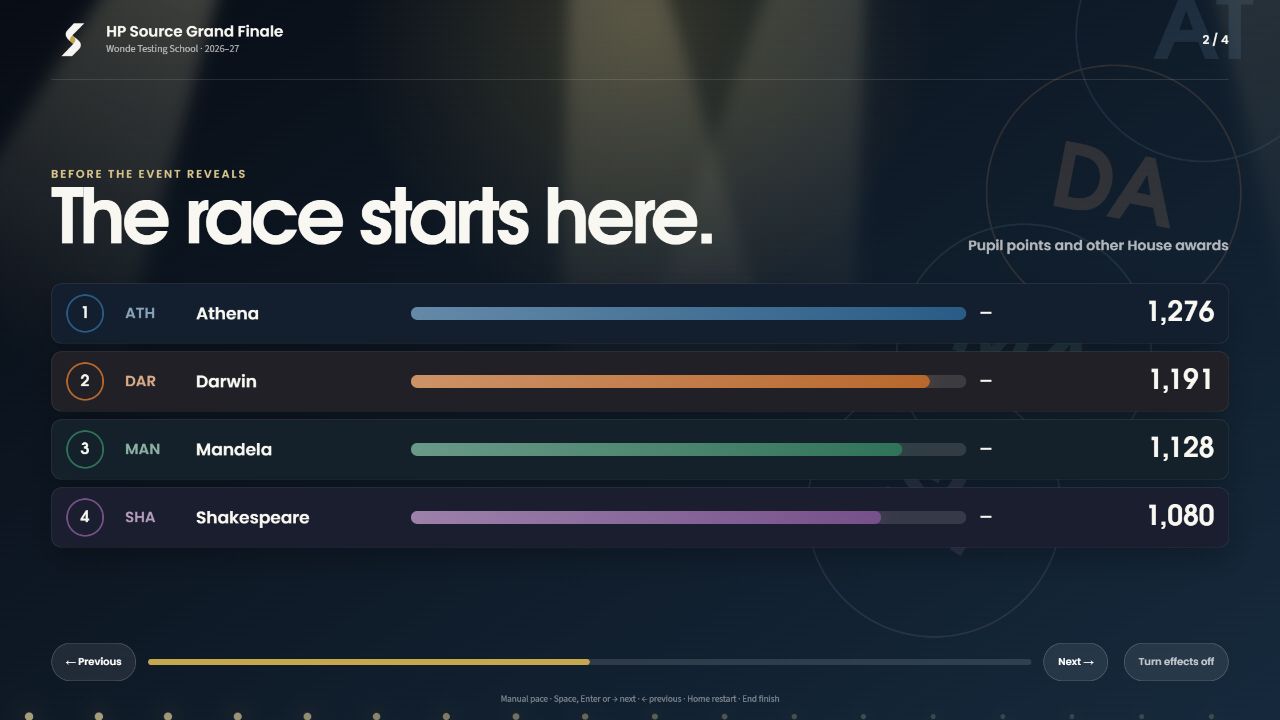
The opening race contains points already awarded before these events.
All Houses can see the starting order and points gap.
Advance the ceremony when the audience is ready.
Reveal the event podium. Sports Day placings appear while the previous standings are held for the award sequence.
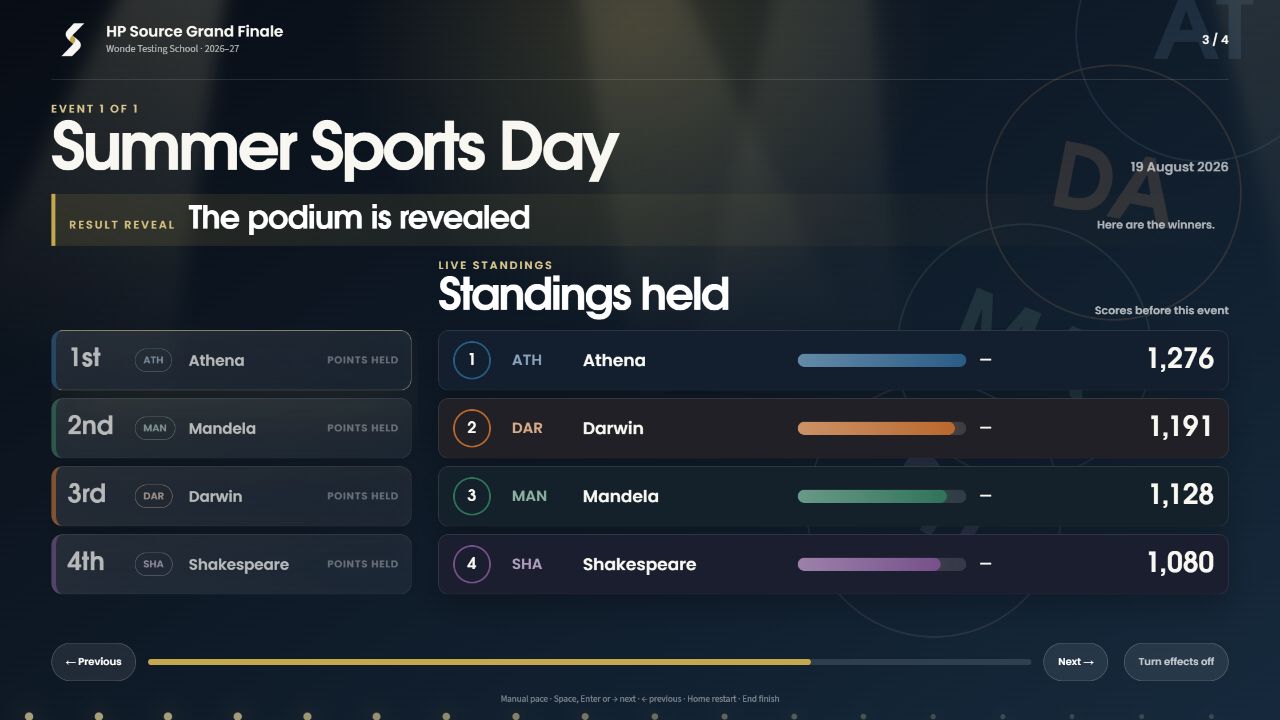
The ceremony identifies the event being revealed.
Show the event placings before transferring the points.
The race retains its previous totals until the award step.
Present the champion. After the awards and rank changes, Athena finishes with 2,276 points.

The closing result names the House that finished first.
The winning total follows the scored event sequence.
The presenter can turn the visual effects off.
Features in this workflow
- Grand Finale
- Presenter-led pace
- Event podium
- Held starting totals
- Scored rank changes
- Final champion
- Effects control
05 · Check imported points
Keep the imported rows and totals accountable.
Inspect the committed source batches, then read the reconciled totals with pupil points and House bonuses separated.
Inspect the committed batches. Fictional points and roster files retain their accepted, duplicate and exception counts.
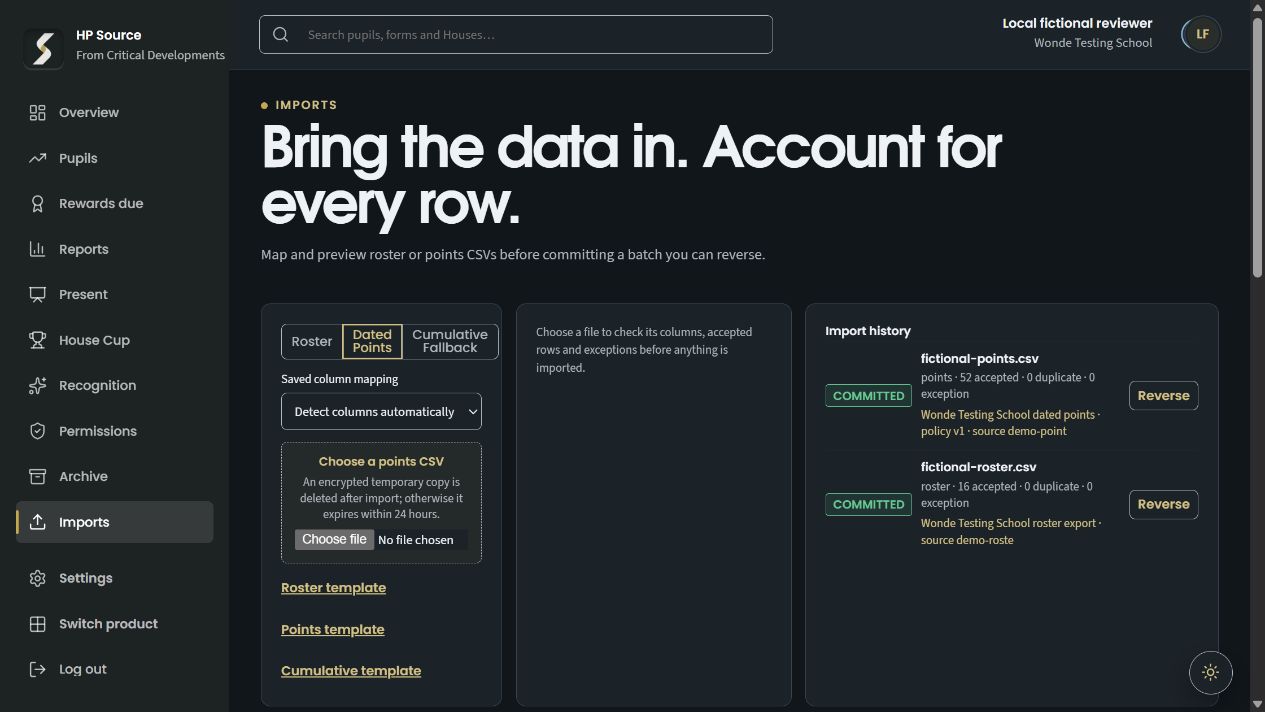
Each import keeps the source filename and batch type.
Accepted, duplicate and exception counts stay attached to the batch.
A committed batch has a visible reversal route.
Check the reconciled totals. The House table and reconciliation checks show the totals that the imported records support.
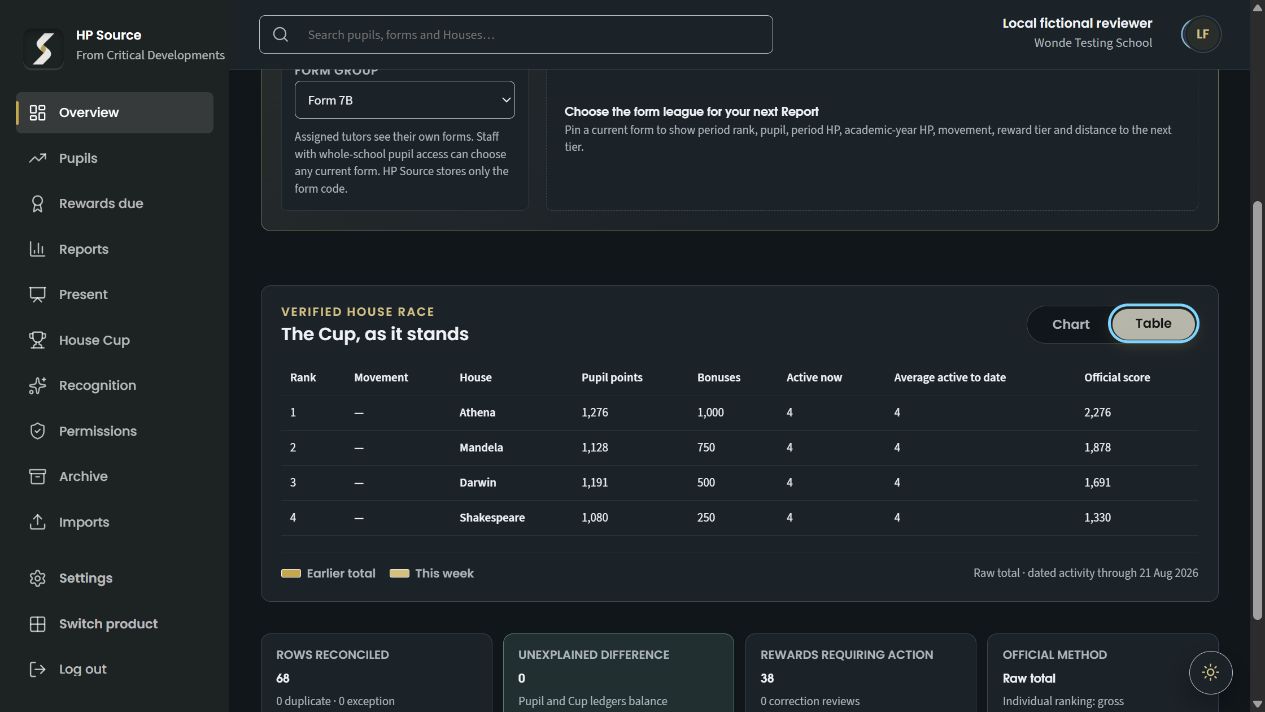
Review the recorded standings in an accessible table.
Pupil points and Cup bonuses retain their separate totals.
Check accepted rows and unexplained differences before using the standings.
Features in this workflow
- Retained source batches
- Accepted rows
- Duplicate counts
- Exceptions
- Batch reversal
- Separate ledgers
- Reconciliation
06 · Explain the standings
Understand what contributes to the House totals.
Explore the season and contribution views, then read the House standings in a table.
Explore the contributions. Compare House, year and form contributions and the available season timeline.
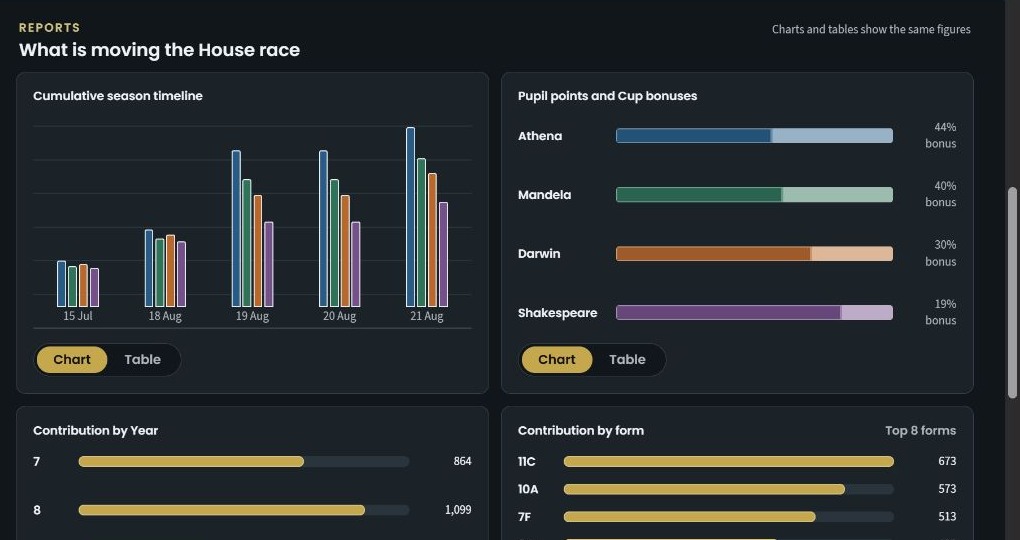
Inspect how the competition has changed over the season.
See how each House’s total is composed.
Compare aggregate contributions by year group.
Inspect contributions by tutor group.
Read the standings as a table. Pupil points, Cup bonuses and the official score remain separate columns.
Review the recorded standings in an accessible table.
Pupil points and Cup bonuses retain their separate totals.
Check accepted rows and unexplained differences before using the standings.
Features in this workflow
- Season timeline
- House contributions
- Year and form views
- Table alternative
- Scoring context
- Official totals