
WorkPane · In action
The working school day.
WorkPane keeps the useful parts of the day together: live classroom tools, current guidance and notices that know who needs to see them.
Real product screenshots · demonstration school records. Choose a workflow, move through its screens and explore the gold spots.
01 · Start the school day
Bring the day’s tools and commitments together.
Use Home for the immediate classroom task, then check the demonstration calendar for the coming briefings and meetings.
Open the working dashboard. The name picker, timer, tasks and calendar share the Home view.
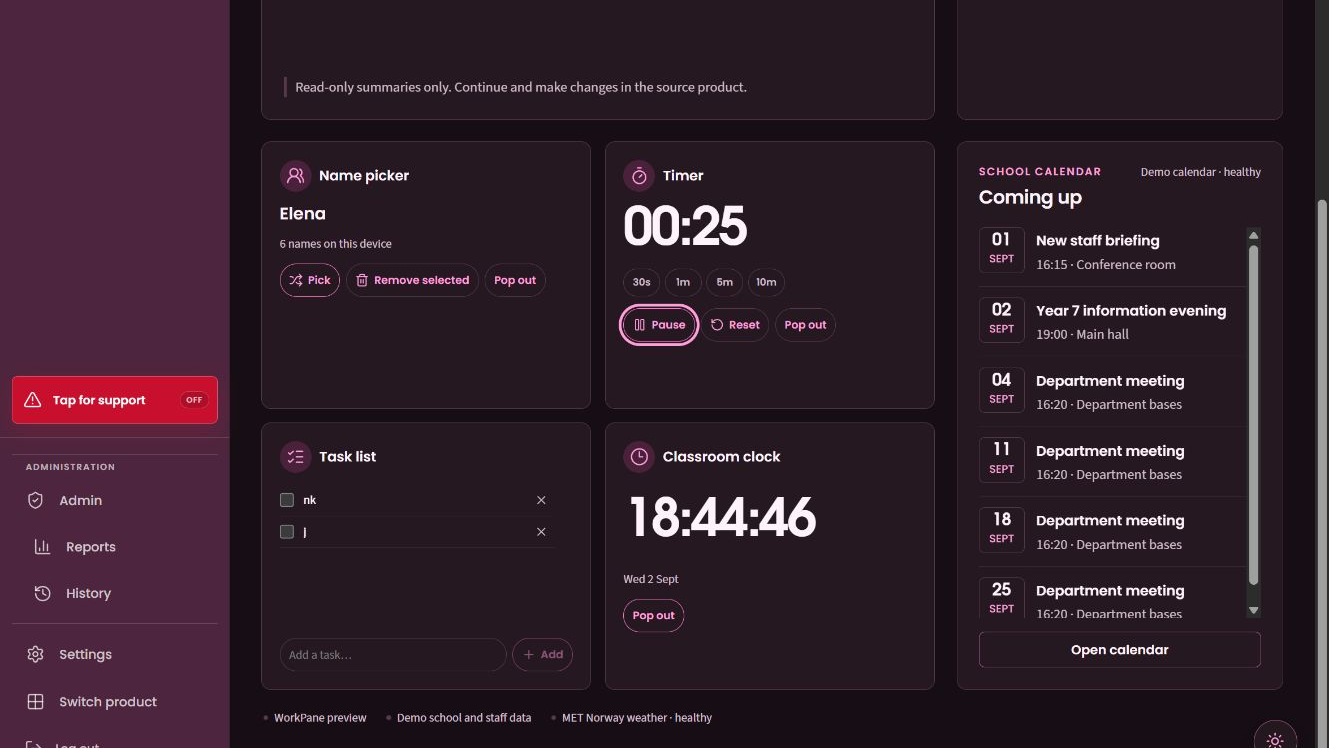
Choose a pupil from the selected class.
Keep a visible countdown beside your tasks and calendar.
Check upcoming school events alongside the classroom tools.
Keep the next tasks in the same working view.
Read the coming events. Browse dated events and recurring department meetings in the selected calendar range.
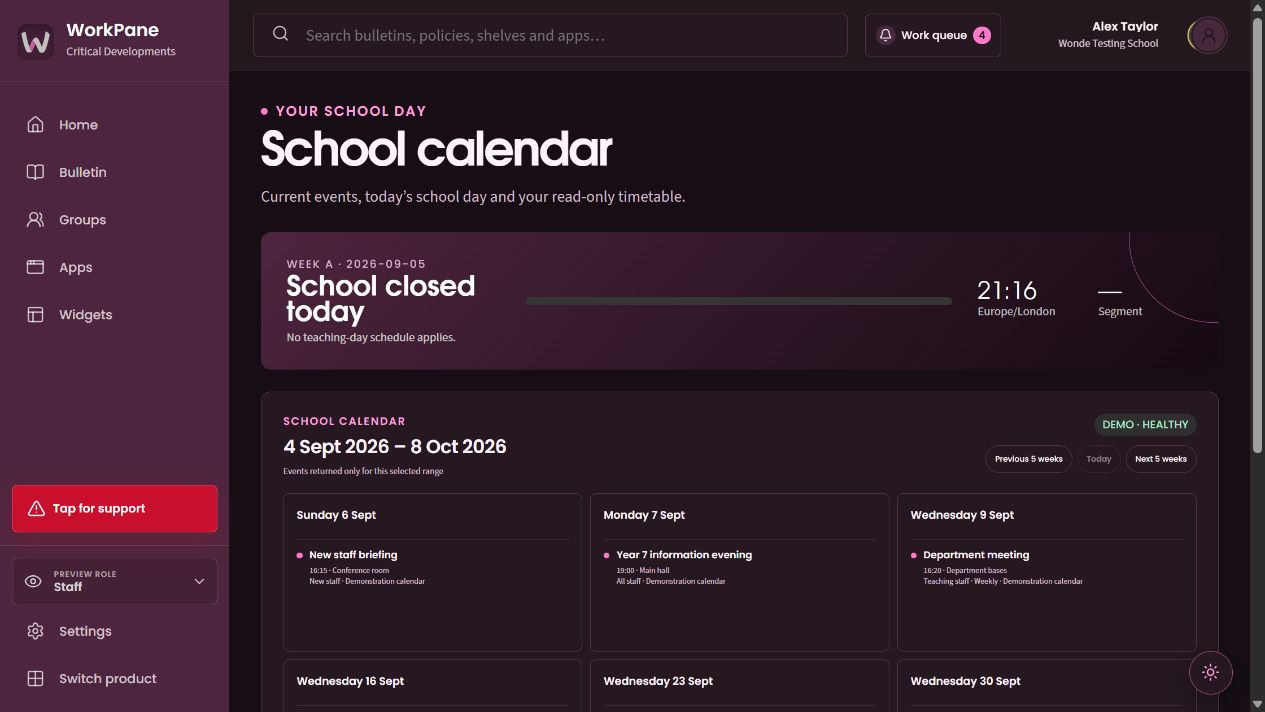
Browse events in a defined date range.
Read the time, place and intended staff audience.
Repeated department meetings remain visible in the calendar.
Features in this workflow
- Home dashboard
- Quick widgets
- Tasks
- Calendar range
- Event details
- Recurring meetings
02 · Run classroom tools
Keep the tools you use together.
Choose a tool set, then run the timer and select a name while the other classroom tools remain available.
Choose the tool set. Eight classroom tools are available in a configurable layout.
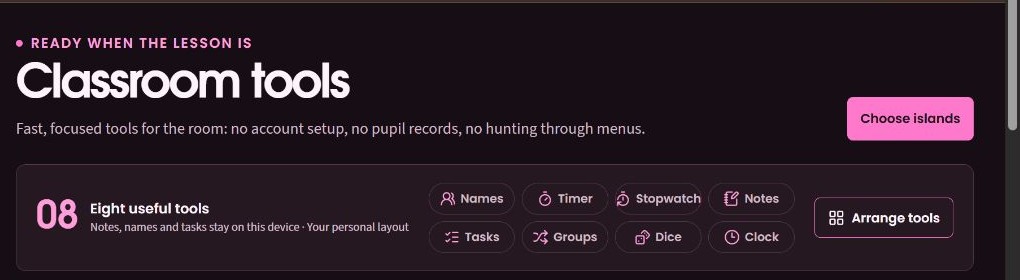
Choose the timing tool that suits the lesson task.
Keep a task list or prepare pupil groups from the tool selection.
Set the classroom layout around the tools you use.
Use the tools during the lesson. A selected name, running countdown and separate stopwatch stay within the same workspace.
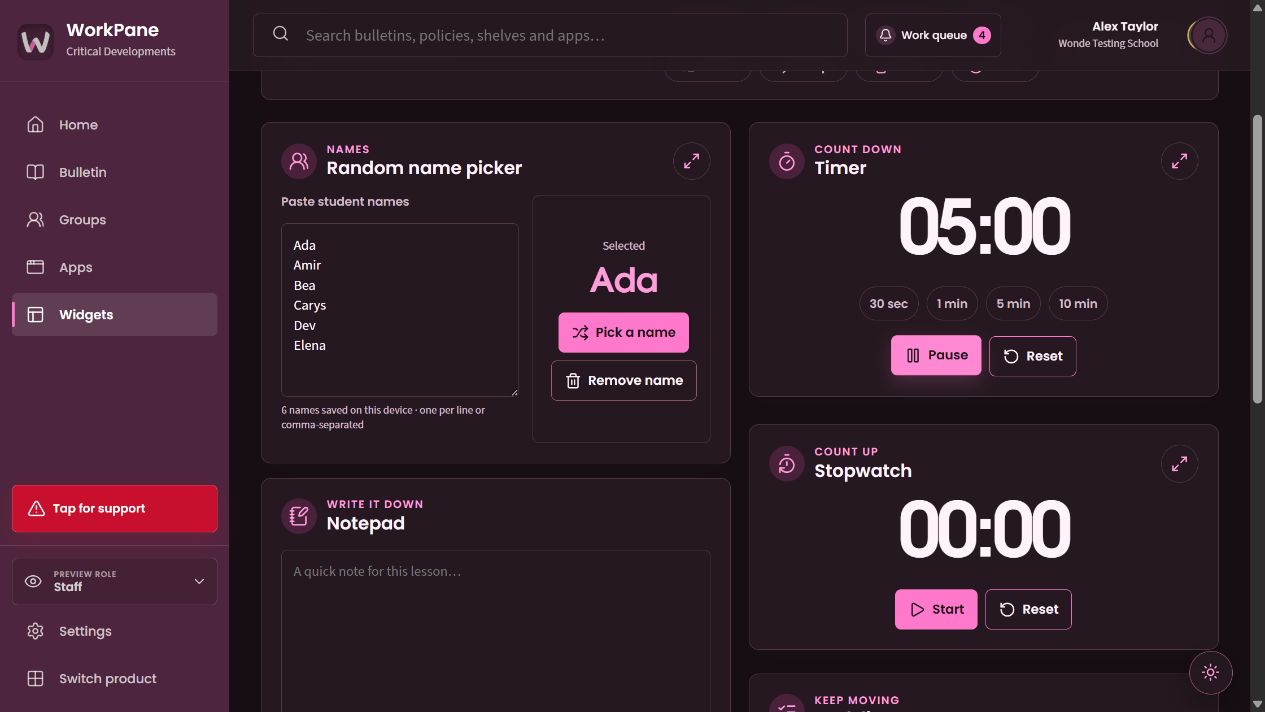
The chosen name stays visible and can be removed from the next draw.
Preset durations and pause/reset controls stay together.
Count elapsed time without replacing the lesson countdown.
Features in this workflow
- Name picker
- Remove selected name
- Timer presets
- Stopwatch
- Notes and tasks
- Groups and dice
- Personal arrangement
03 · Publish a staff notice
Give a notice a clear audience and follow-through.
Follow a staff-authored reading notice through a second publisher’s review and the reader’s acknowledgement.
Review the staff submission. A second publisher checks the wording, priority and audience before publishing the reading notice.
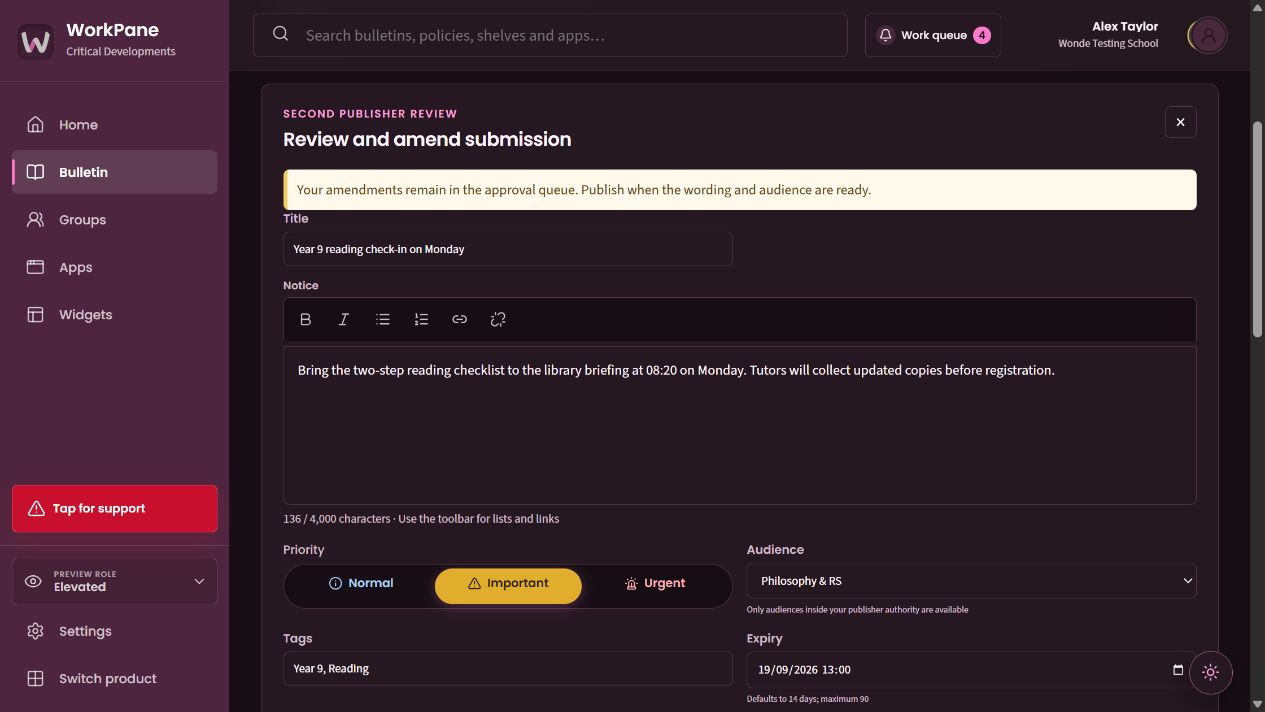
A staff submission is reviewed by a different authorised publisher.
The publisher can check and amend the notice before it reaches staff.
Choose how the notice should be distinguished in the bulletin.
Check the staff group that should receive the notice.
Read and acknowledge. The published reading notice retains its audience, expiry and recorded acknowledgement.
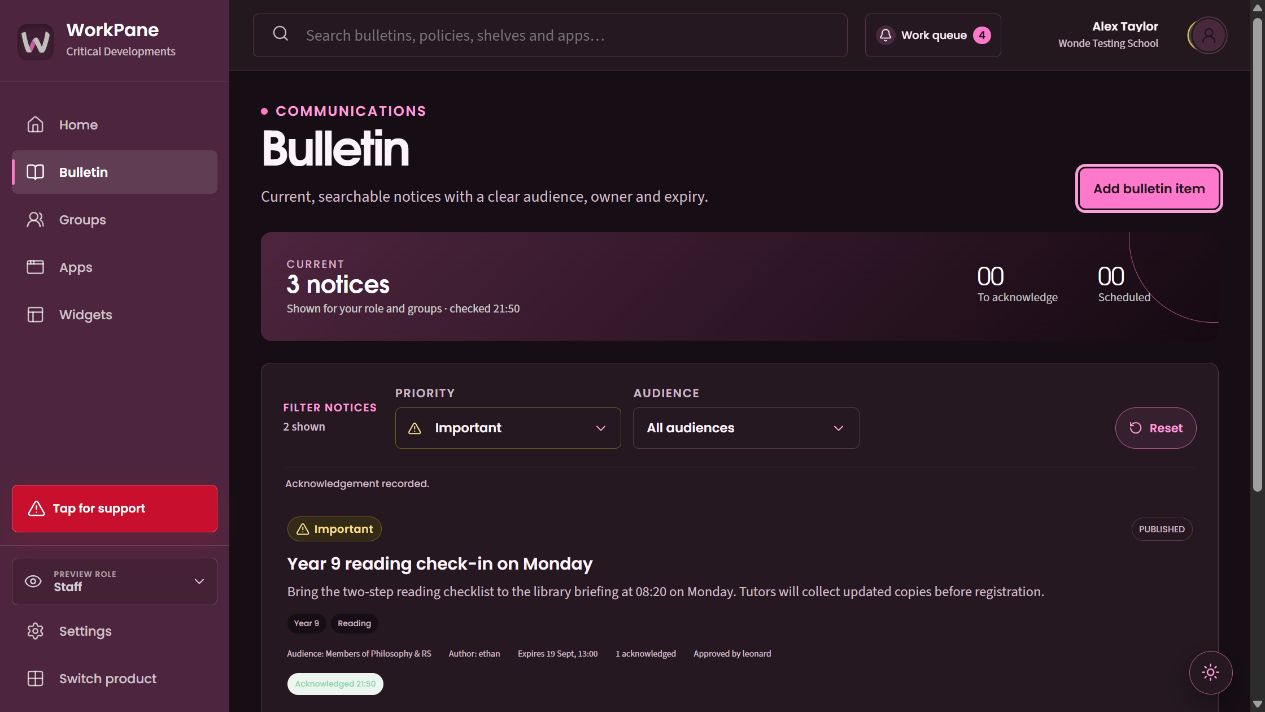
The important notice is clearly distinguished from routine information.
The published notice identifies its author and the colleague who approved it.
A recorded acknowledgement remains separate from the published state.
Features in this workflow
- Staff submissions
- Second publisher review
- Audience selection
- Priority
- Expiry
- Reader acknowledgement
04 · Share current guidance
Give shared guidance a dependable home.
Open the group shelf, check its ownership and review settings, then manage the staff who need access.
Open the shared shelf. The group’s handbook and school calendar can be opened from one place.
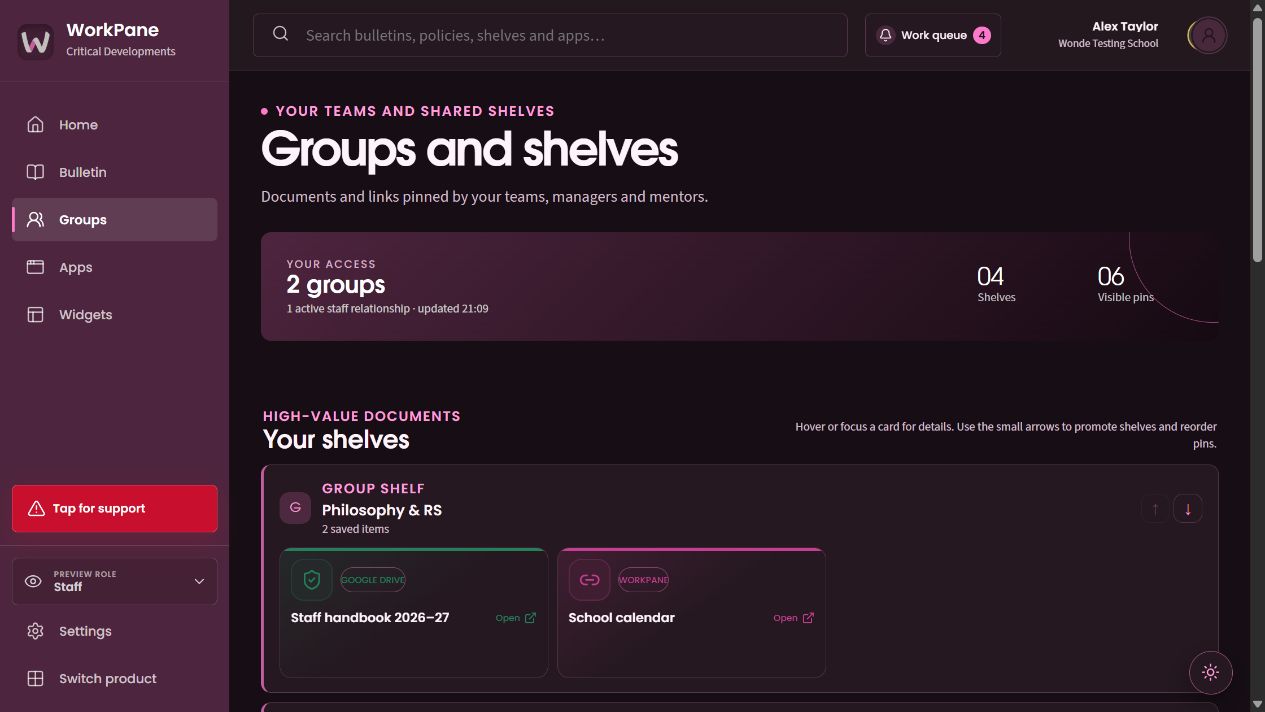
The group gives shared documents a clear home.
Open the source document directly from the shelf.
Keep useful links beside the documents staff use.
Set ownership and review. The editor identifies the group’s owner, purpose and review date.
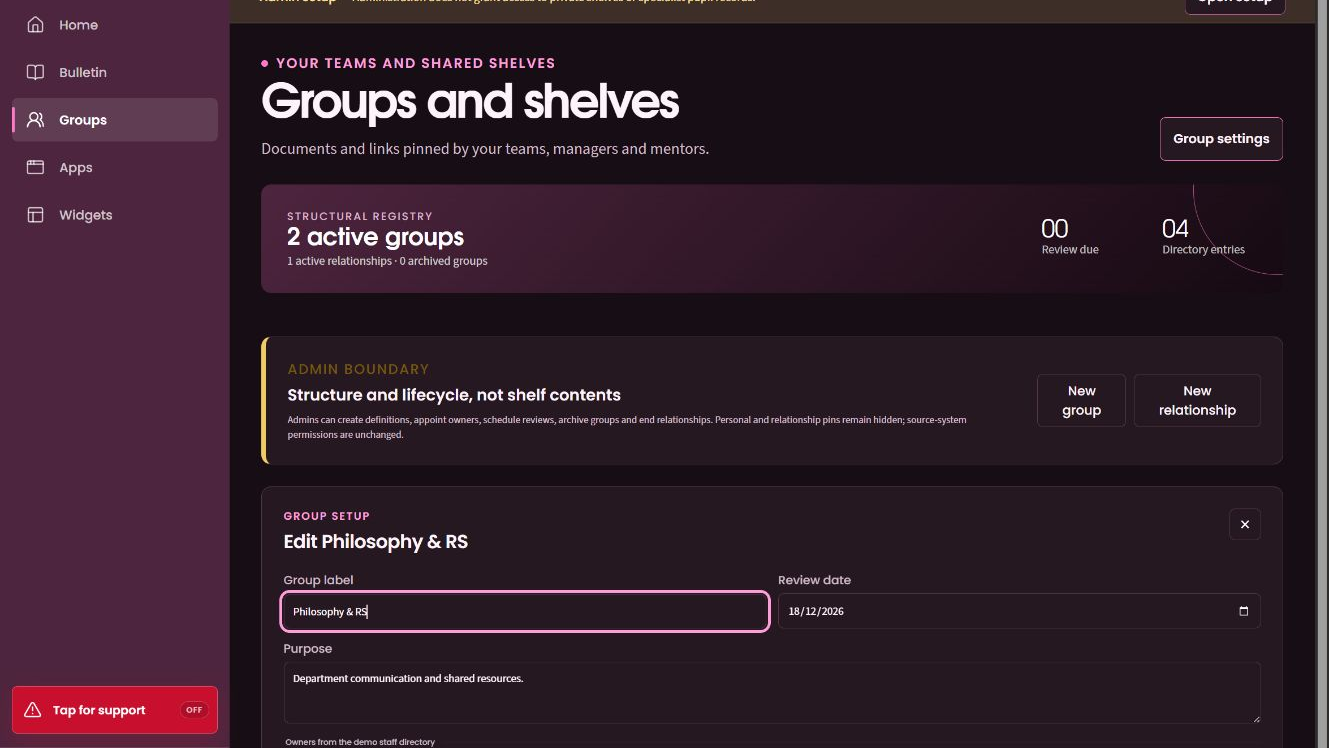
Give a group a clear purpose and someone responsible for keeping it useful.
Manage the group without changing the source documents.
Set when the guidance should next be checked.
Review membership. Keep the owner identified while choosing the colleagues who share the shelf.
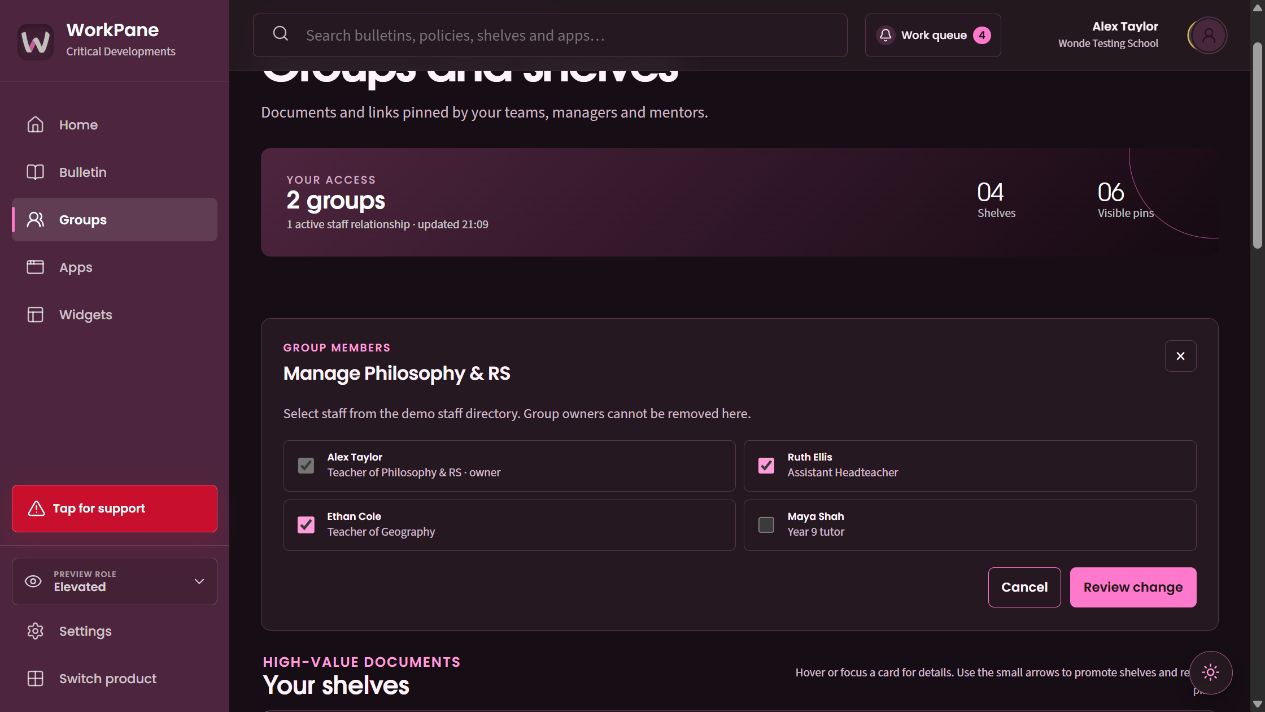
The group owner remains identified while membership is edited.
Select the colleagues who need the shared shelf.
Check the membership change before saving it.
Features in this workflow
- Group shelves
- Direct source links
- Named owner
- Review dates
- Staff membership
- Membership review
05 · Put school apps in reach
Keep school systems on a personal shelf.
Browse the school catalogue and available suite products, then keep frequently used destinations pinned.
Browse the available apps. School applications and available suite products share one catalogue.
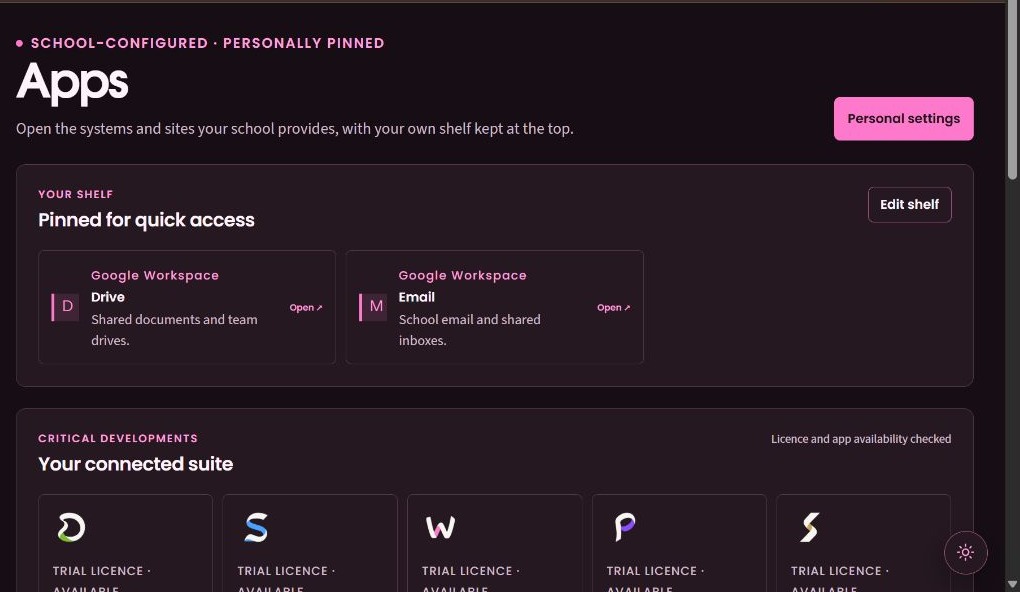
Put frequently used school systems on your personal shelf.
Choose the shortcuts you want to keep in reach.
Open a licensed Critical Developments product from the same page.
Use the personal shelf. Pinned applications sit above the suite products available to the school.
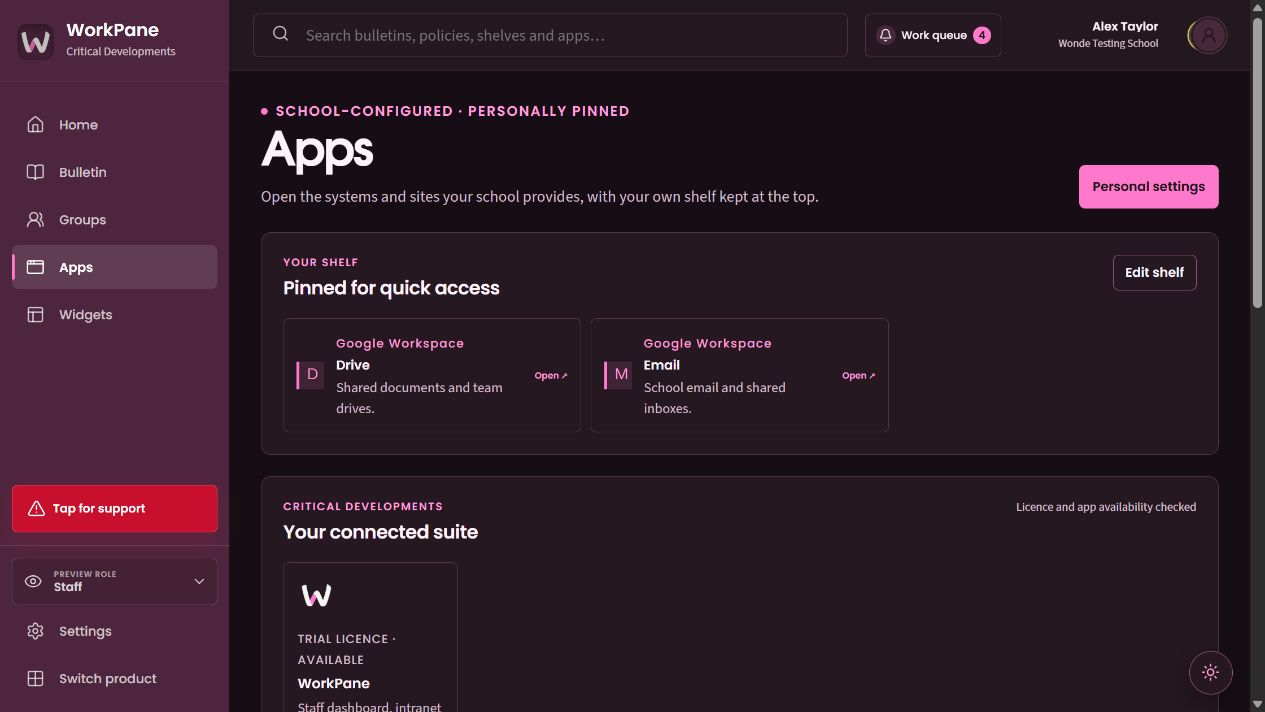
Edit the set of school applications you keep in reach.
Pinned entries identify the application and open its destination.
Suite access reflects the products available to the school.
Features in this workflow
- Application catalogue
- Personal pins
- Direct destinations
- Suite launcher
- Licence-aware availability
06 · Request staff support
Check the destination before requesting support.
Review the recipient, location and fallback, then inspect the receipt. This example runs in test mode and sends no message.
Review the test request. The request names the support destination and room, with the established fallback procedure beside them.
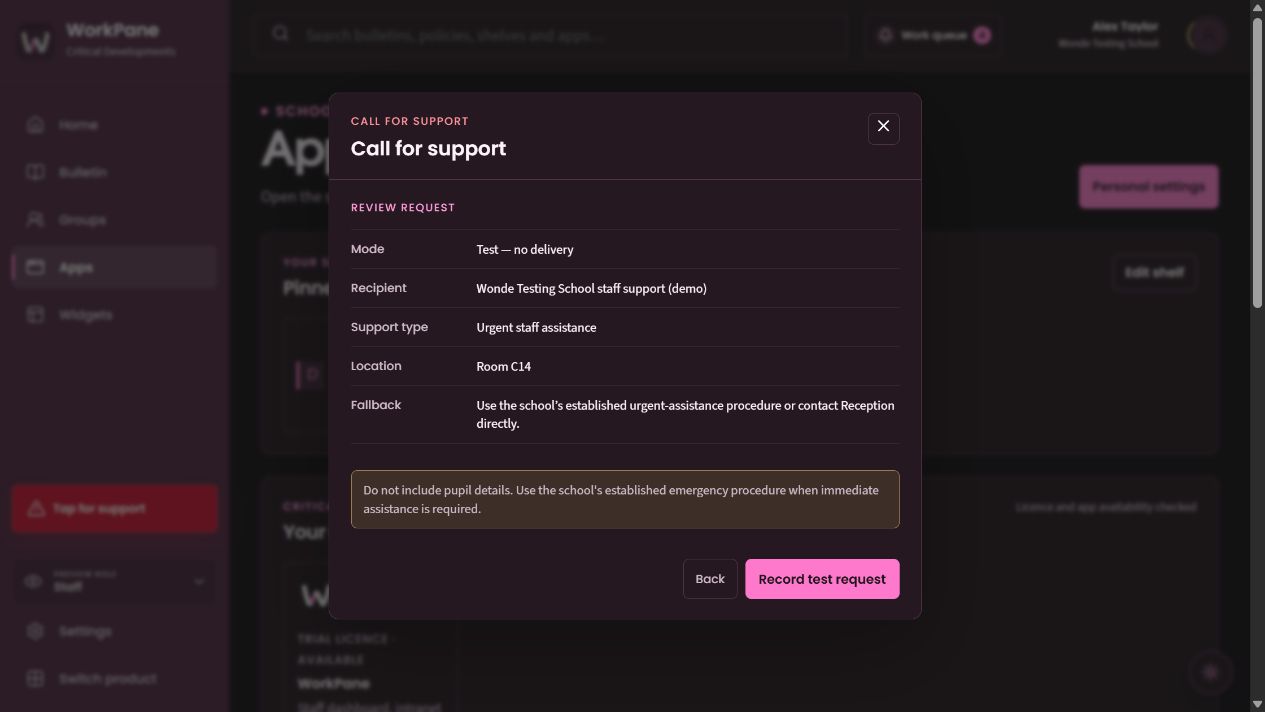
Check who the request is addressed to before recording it.
The request carries the location that staff need to act.
The established school procedure remains available.
Check the test receipt. The recorded receipt explicitly distinguishes the local test from a delivered message.
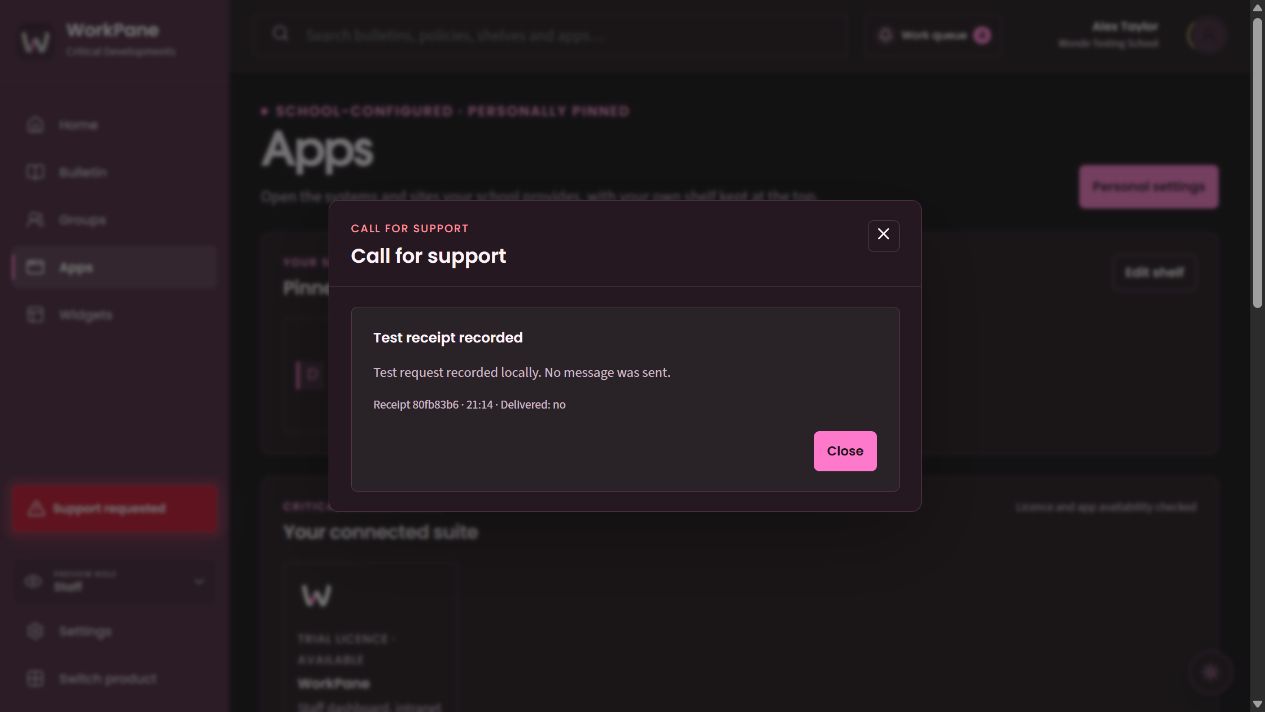
The test has a recorded result.
This receipt explicitly says no message was sent.
A reference and time distinguish this request from another attempt.
Features in this workflow
- Support type
- Recipient review
- Current location
- Fallback procedure
- Test mode
- Explicit delivery state