
PASSport · In action
Provision, whereabouts and follow-through.
PASSport joins the live period picture, individual context, handovers and authorised cohort reporting without turning every member of staff into a data administrator.
Real product screenshots · demonstration school records. Choose a workflow, move through its screens and explore the gold spots.
01 · Check this period
Know where the pupil should be, then record the check.
Start with the current period and use the placement record to distinguish expected whereabouts from an observed arrival.
Read the current period. Review alternative sessions, location checks and open handovers for the selected period.
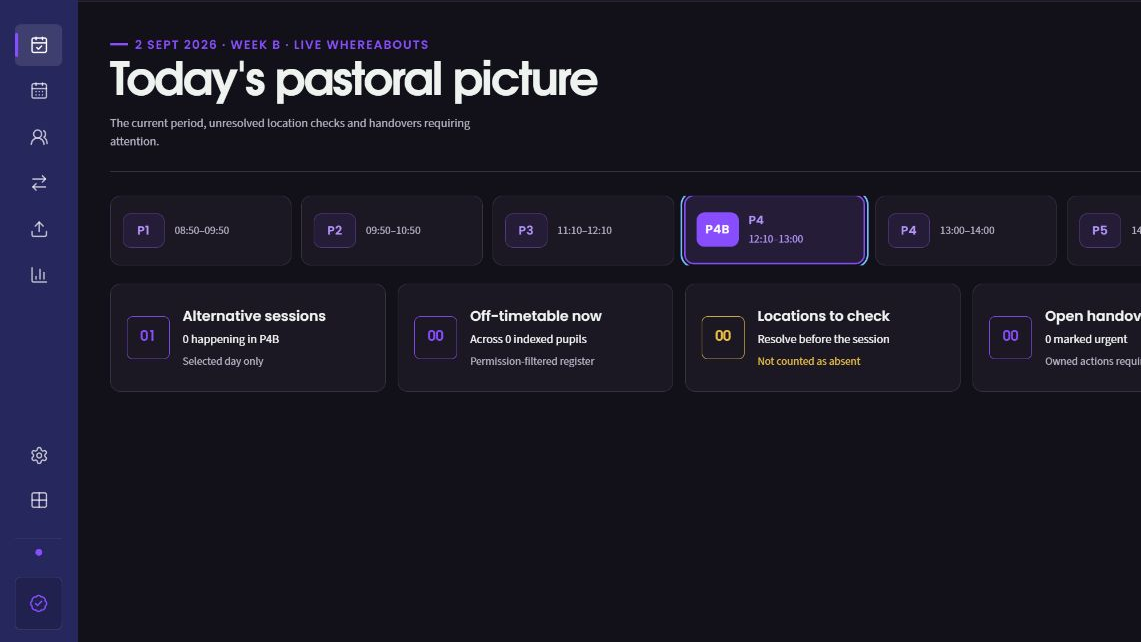
Switch the period to check the relevant part of the school day.
See sessions, locations to check and open handovers together.
See the immediate alternative-placement picture for this period.
Record the arrival. Ava’s mentoring occurrence records arrival and a brief dated note.
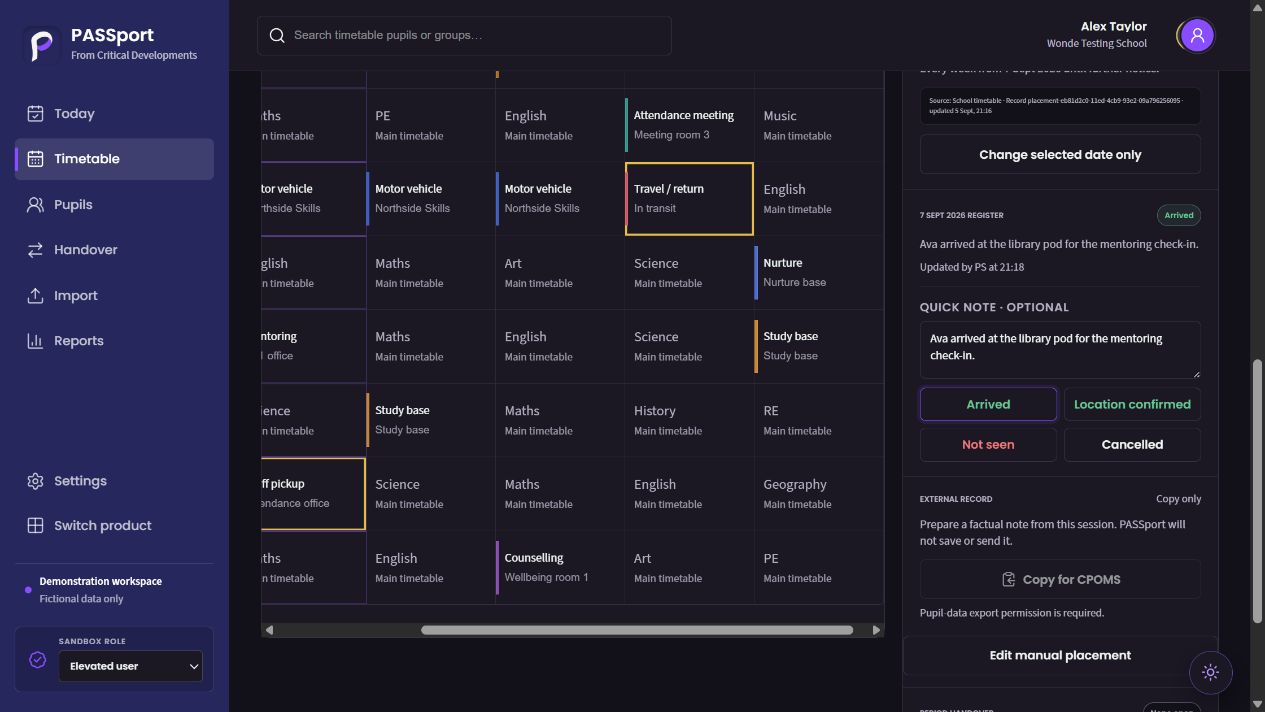
Arrival is an explicit session outcome.
The note and updater remain attached to this occurrence.
Location confirmed, not seen and cancelled remain distinct choices.
Features in this workflow
- Period selector
- Alternative sessions
- Location checks
- Dated occurrence
- Arrival outcome
- Operational note
02 · Schedule alternative provision
Put a recurring session into the pupil’s week.
Follow Ava’s Monday P5 mentoring placement from its recurrence and location to collection instructions and the saved timetable entry.
Set the session and recurrence. Choose Ava, mentoring, the library pod and the weekly Monday P5 pattern.
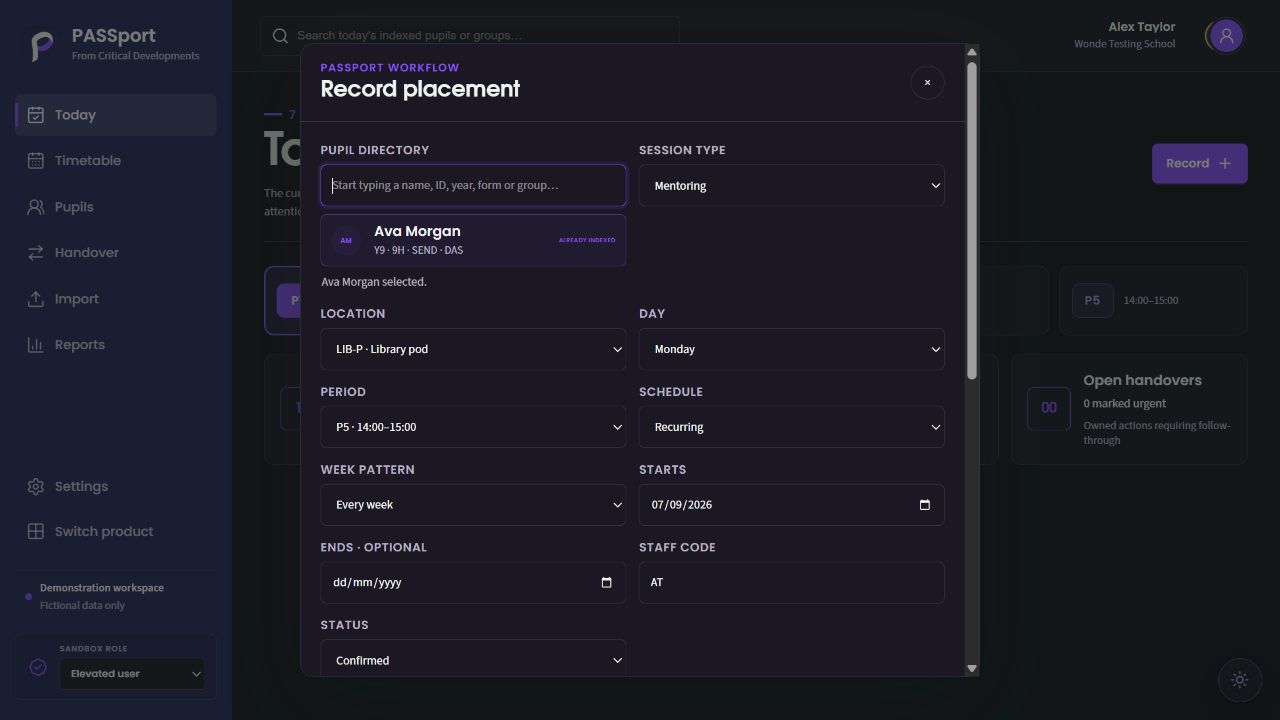
Confirm the pupil’s year and form before placing them.
The selected place is attached to the mentoring session.
Set a recurring or one-off placement and its week pattern.
Record collection and return. Keep meeting and return instructions with the session.
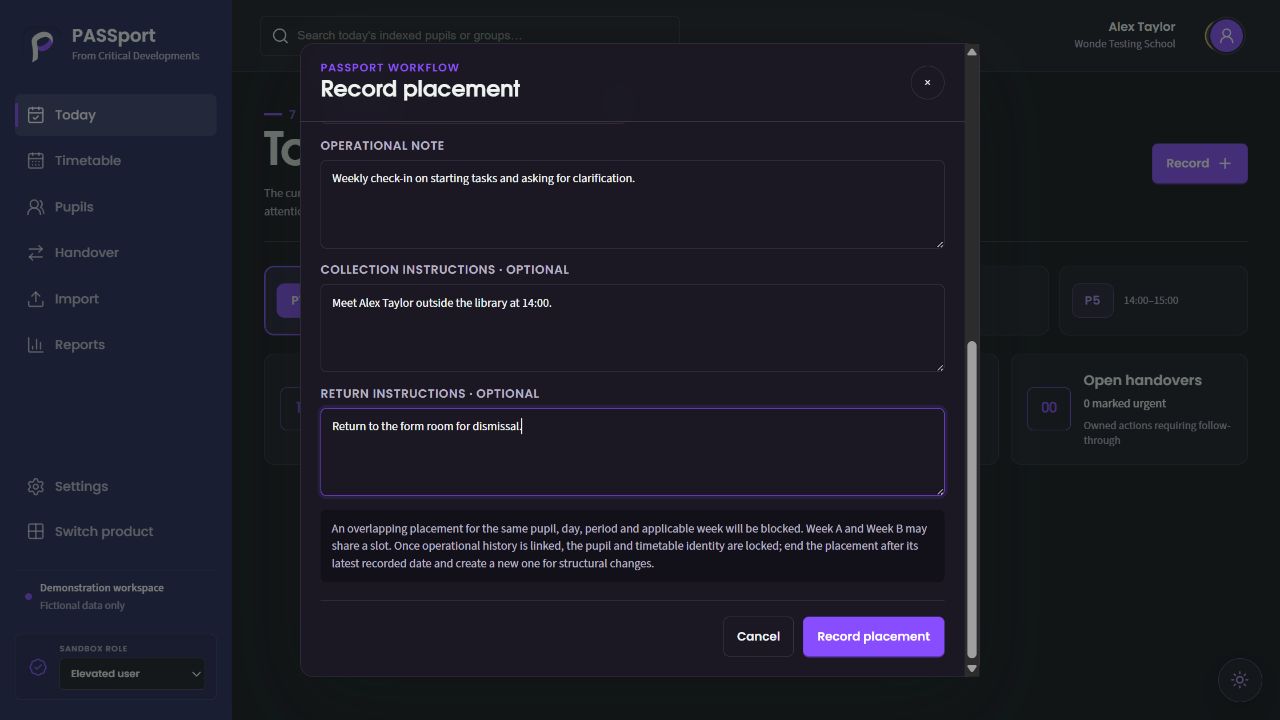
Keep the purpose of the session brief and useful.
State where and when the pupil meets the responsible colleague.
Make the next destination explicit.
Open the saved placement. The timetable detail retains Ava’s weekly pattern, location and responsible colleague.
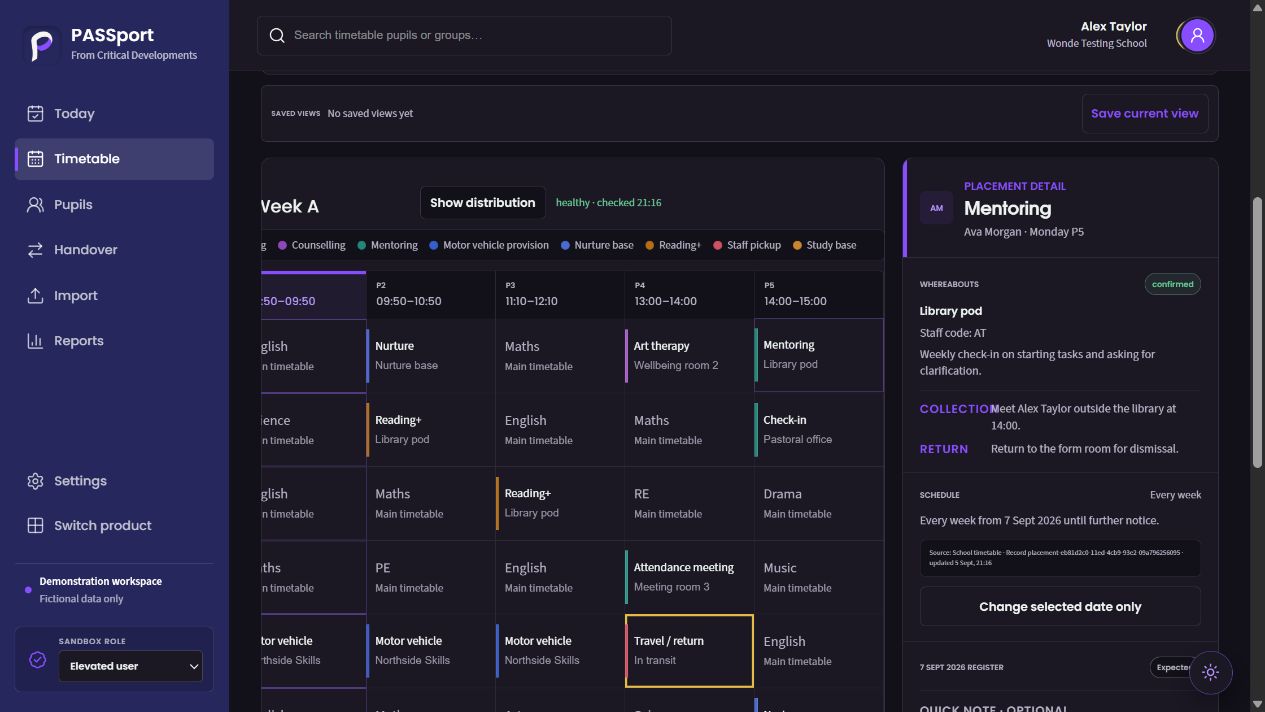
The detail remains tied to Ava’s Monday P5 session.
The library pod and responsible staff code are recorded together.
The saved session shows its effective start and weekly pattern.
Features in this workflow
- Pupil selection
- Session type
- Location
- Weekly recurrence
- Effective dates
- Collection and return
- Timetable placement
03 · Complete a handover
Give the follow-up an owner and a recorded ending.
Prepare the next action from the mentoring placement, then retain the completed task and its lifecycle note.
Prepare the owned action. The handover links the next mentoring check-in to Ava’s placement and a staff owner.
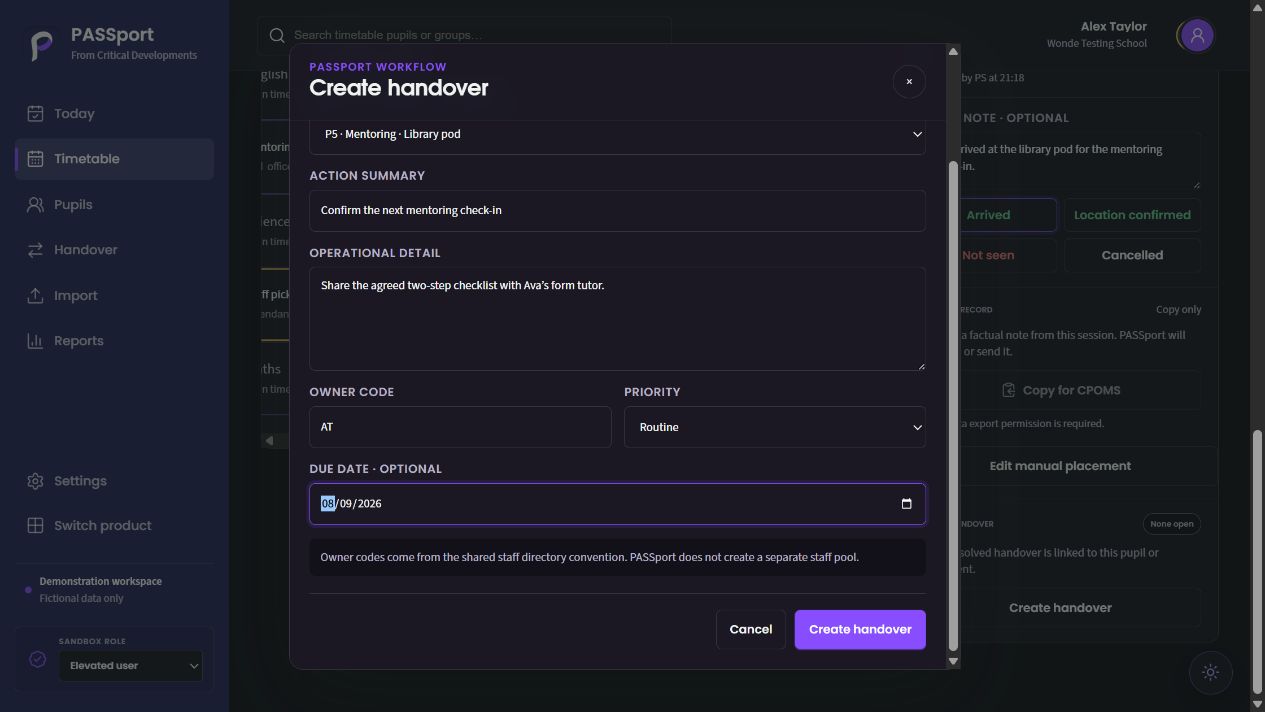
The handover stays with the pupil’s mentoring session.
Describe what the next colleague needs to do.
Assign the next action to a responsible colleague.
Keep the completed follow-up. After acknowledgement and closure, the retained item explains what was completed.
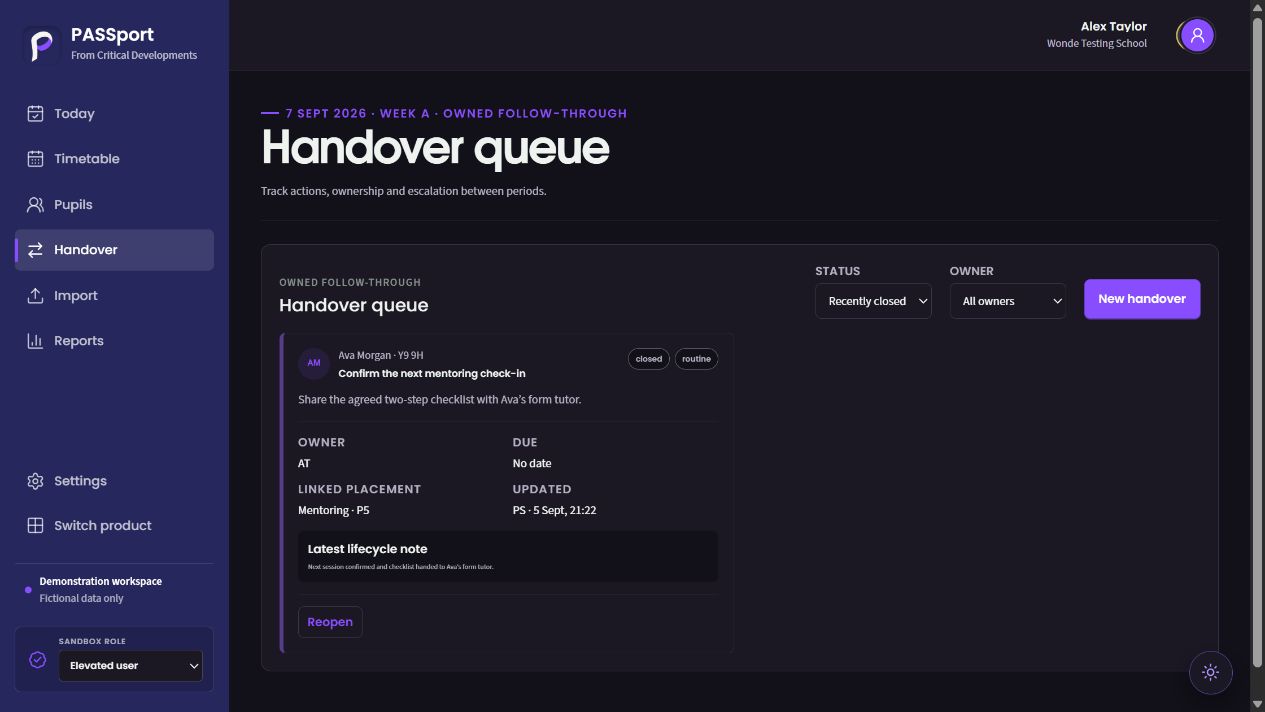
Completed work remains identifiable in recent history.
The retained item keeps its mentoring placement and staff owner.
The lifecycle note explains what was done before closure.
Features in this workflow
- Linked placement
- Action summary
- Named owner
- Urgency
- Acknowledgement
- Closure note
- Recent history
04 · Compare pupil timetables
Compare pupils’ weeks in one view.
Choose the pupils and week, then inspect shared lessons and differences in their provision.
Select the pupils. Find the pupils whose weeks need comparing.
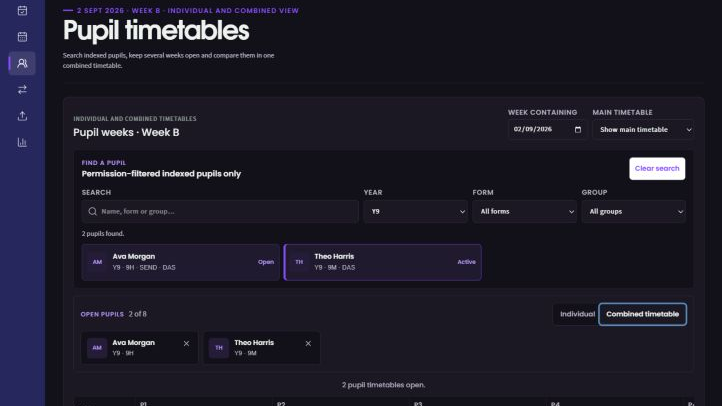
Search and select the pupils whose weeks you need to compare.
Bring the selected pupils into a combined weekly view.
Select the week before comparing the pupils’ sessions.
Compare the weekly grid. Read the selected timetables together while keeping their identities in view.
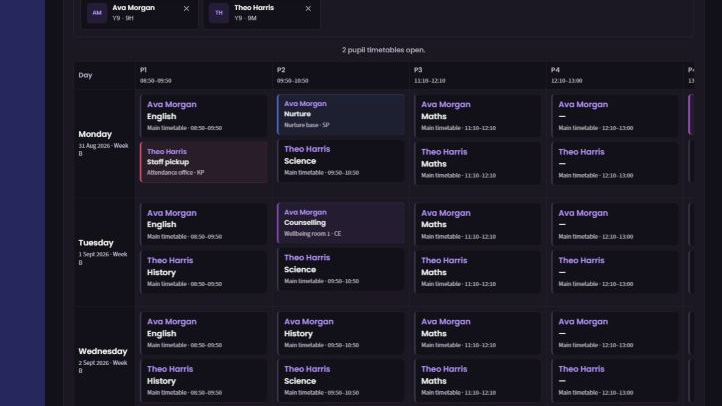
Read the selected pupils’ sessions alongside one another.
Keep the identities visible while comparing the timetable.
Keep each day aligned when reading the selected pupils’ lessons.
Features in this workflow
- Pupil search
- Multiple selection
- Week choice
- Combined timetable
- Shared and different provision
05 · Review provision and follow-up
Explain what was scheduled and what was recorded.
Move from the cohort picture to a report that keeps distinct pupils, scheduled sessions and observed outcomes separate.
Read the cohort picture. Review provision and outstanding checks within the permitted cohort.
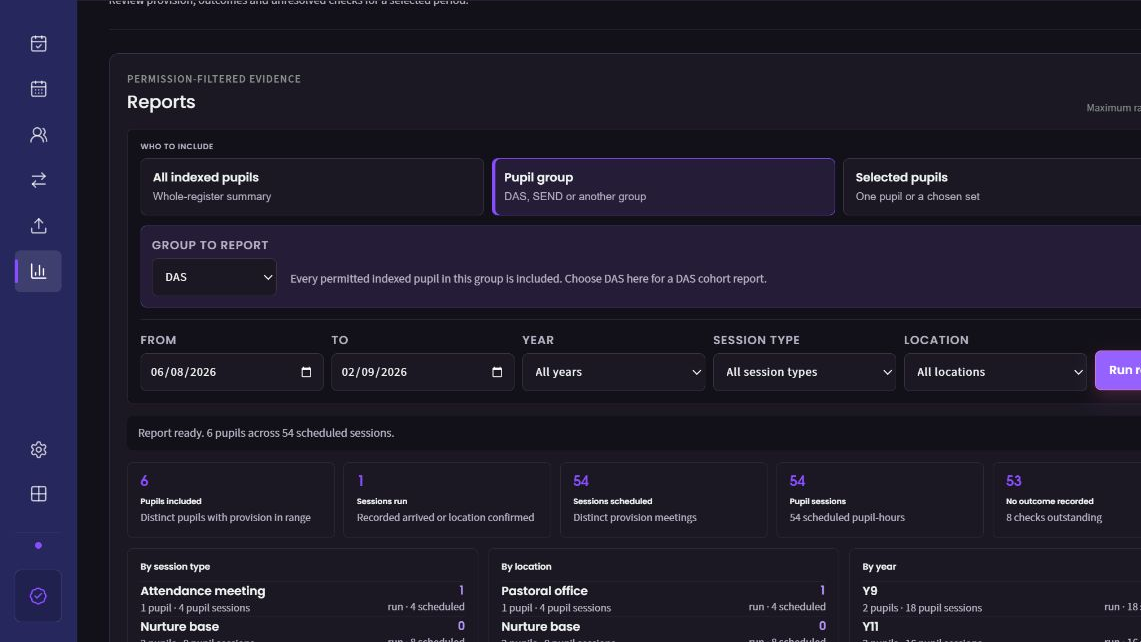
Review the selected cohort within your reporting permissions.
Keep follow-up checks visible alongside recent activity.
Choose the permitted pupils or group before reading the report.
Read the counted outcomes. The report includes Ava’s arrived session while retaining sessions whose outcome has not been recorded.
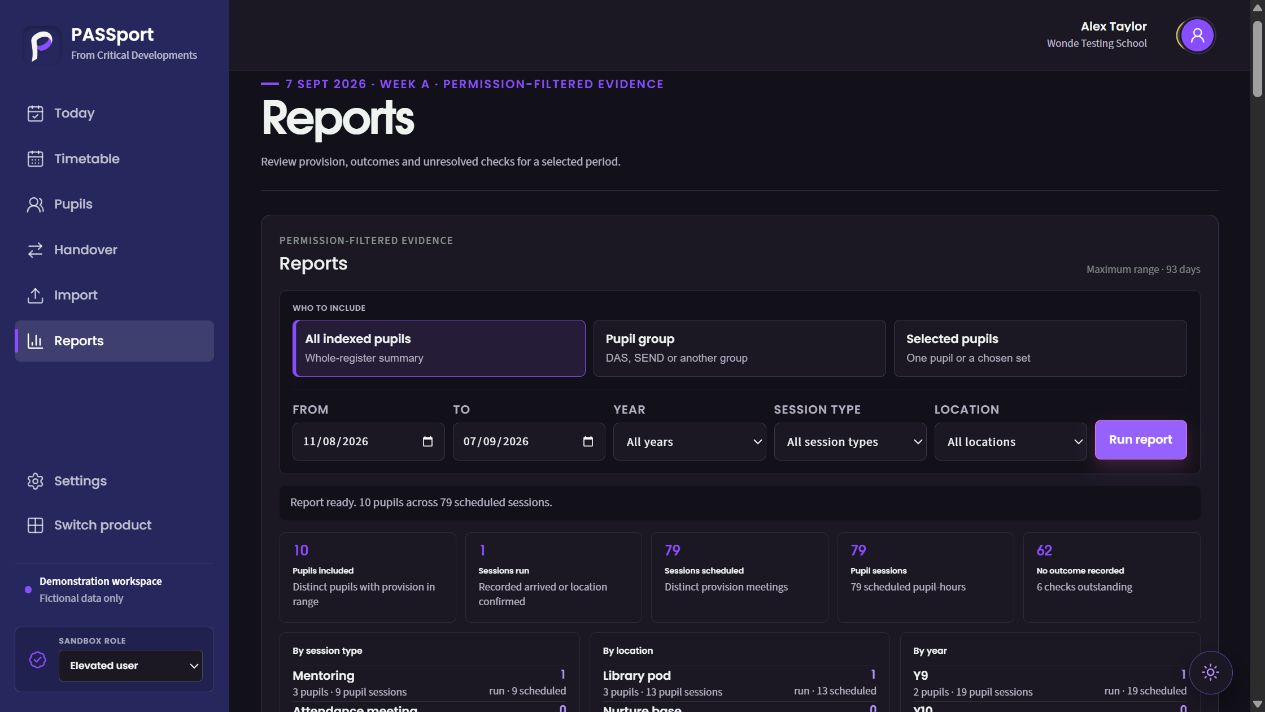
Run a whole-register, group or selected-pupil report.
Dates, session type and location focus the report.
Distinct pupils, scheduled places and sessions with outcomes are reported separately.
Features in this workflow
- Cohort scope
- Date range
- Session and location filters
- Distinct pupil counts
- Scheduled sessions
- Recorded outcomes
- Outstanding checks